

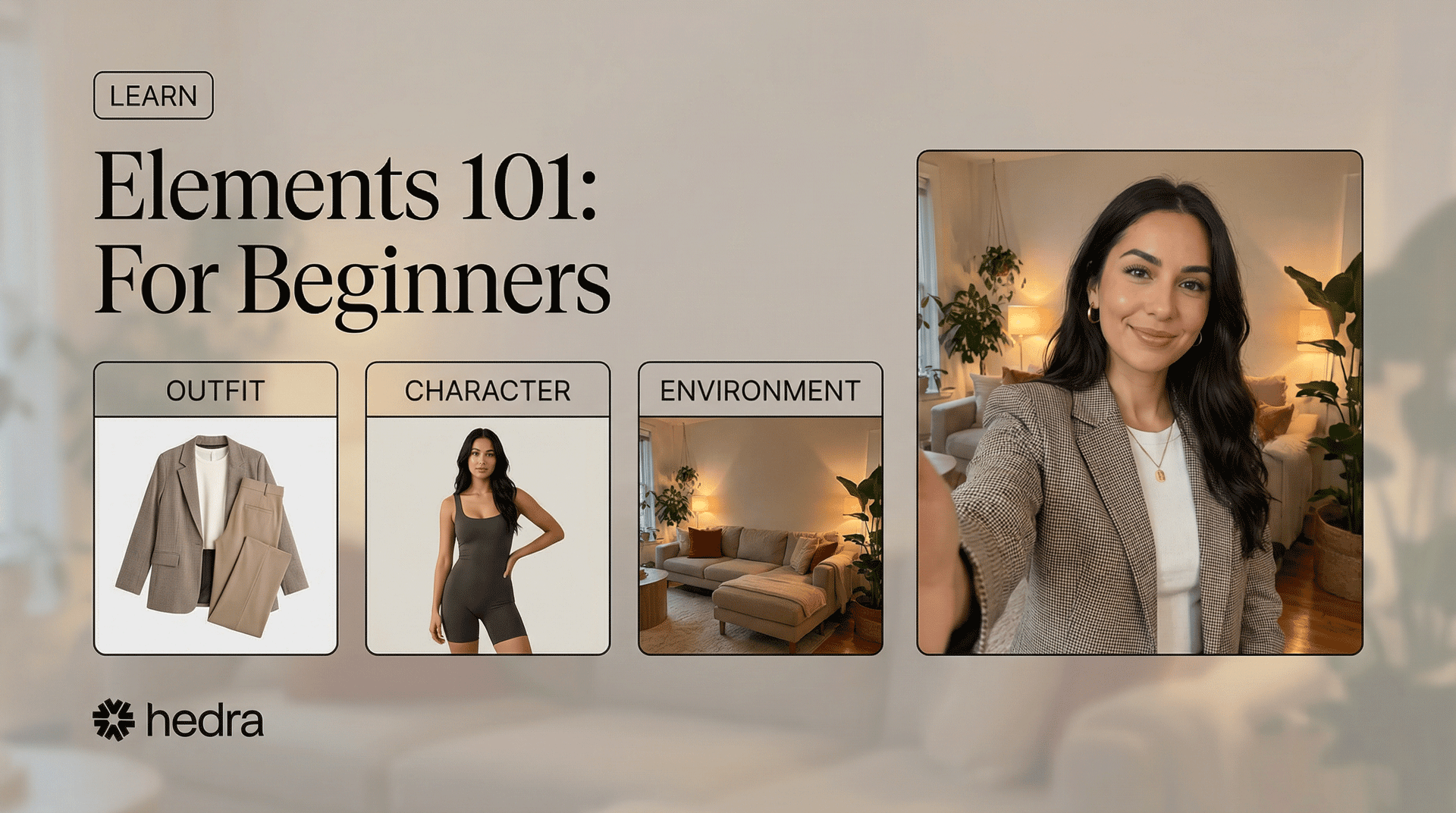
At the end of this lesson, you will understand:
- What elements are.
- Why they’re needed.
- How to use one.
- How to combine them.
- How to create an element.
What are Elements?
An Element is a saved image that you reuse whenever you want something to stay consistent. It might be:- A character
- An outfit
- An environment
- A particular style
- A brand identity
Why Consistency Matters
Consistency isn’t about perfection.It’s about control. When you create more than one image or scene, small changes start to appear:
- A face looks slightly different
- Clothing changes
- Colors shift
- The overall style drifts
But often, it isn’t.
Who cares about consistency?
Who cares about consistency?
- AI influencers & virtual personas – Your character needs to look like the same person across posts and videos.
- UGC creators – When producing multiple ads or variations, the spokesperson and brand look must stay stable.
- Short-form video creators – Visual shifts become obvious once content is animated.
- Brands & agencies – Campaign visuals must feel unified across platforms.
- Series builders – Recurring characters, settings, or formats need visual continuity.
Getting Started
Open: Image App At the top, click ElementsBelow that, you will see several options as shown here.
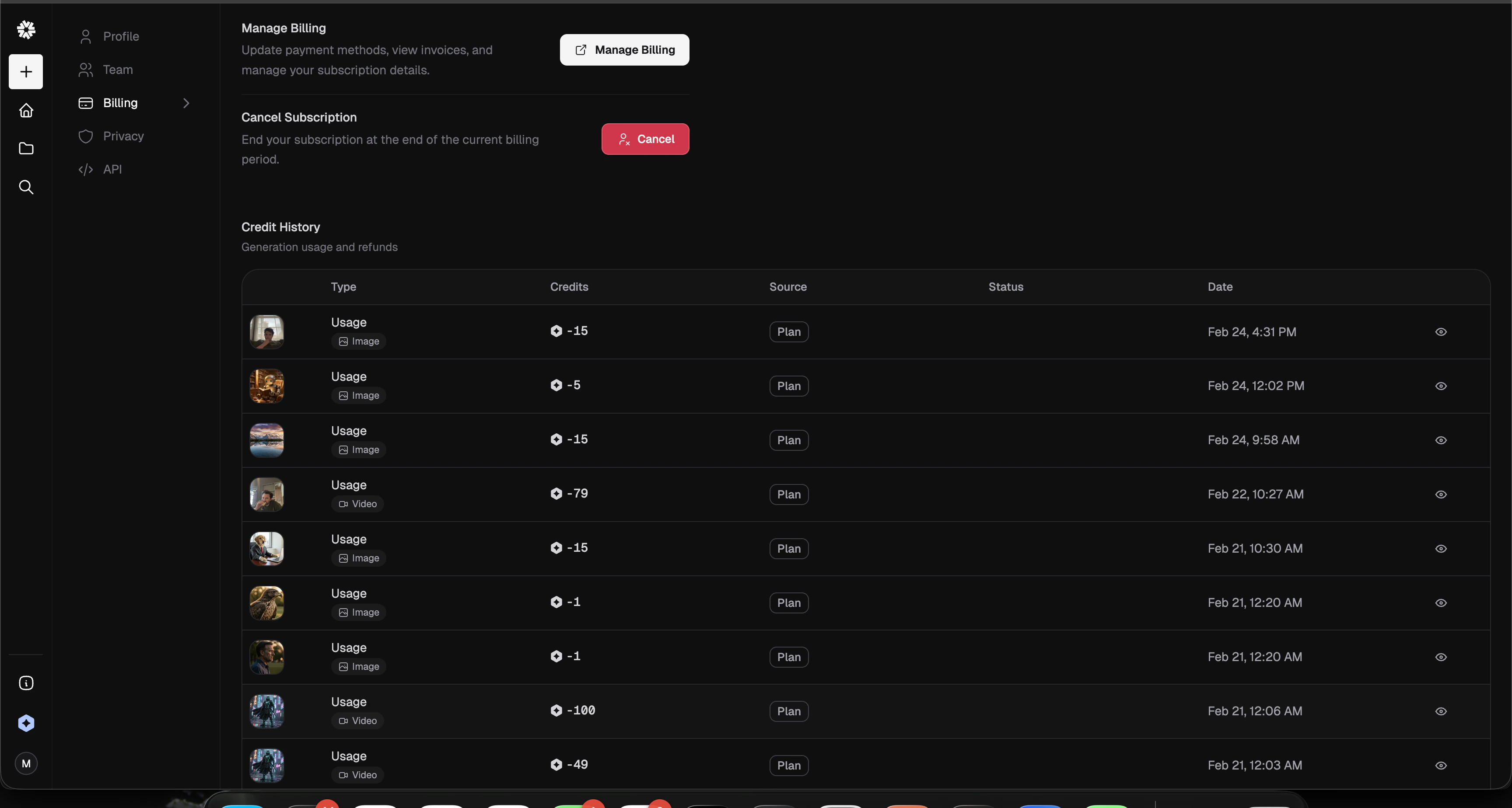
My Elements: Shows any elements that you have created.
Style, Character, Environment, Outfit and Brand Identity sorts public elements by type.
How to Use and Combine Elements
Step 1:
Below Elements, select Character from the menu and then pick from one of the available models. To do this, hover over on the element, which will then say Use and click it. It will change to Remove and the character is now added to your prompt.Step 2:
Next, with a character already selected, now click Environment on the top menu. Follow the same steps to pick your scene as you did the character and click Use on the image.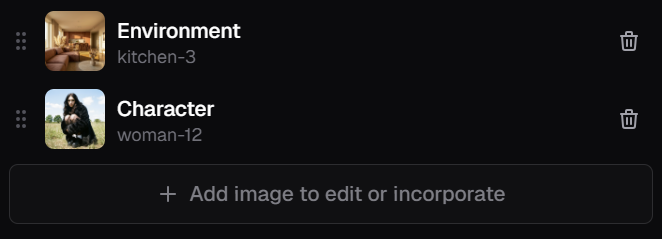
Step 3:
Now you will need to select an image generator or you can simply go with the default. Different generators range in price and quality. By default, it uses Nano Banana Pro, which is one of the leading models and great for building with Elements.Image Model Selections
Image Model Selections
Step 4:
Next is your aspect ratio (16:9, 1:1:, 9:16), resolution (1K, 2K, 4K) and batch size (1-8).Step 5:
Lastly, in your prompt, Describe your image. Your prompt can be as simple as “Place character in environment” or “Have character relaxing on the couch” depending on what you’re trying to achieve. For this, you can use the Enhance Prompt wand to improve on your prompt.Step 6:
When you’re ready, click the to start generating your image. Congratulations! You have just used and combined your first Elements.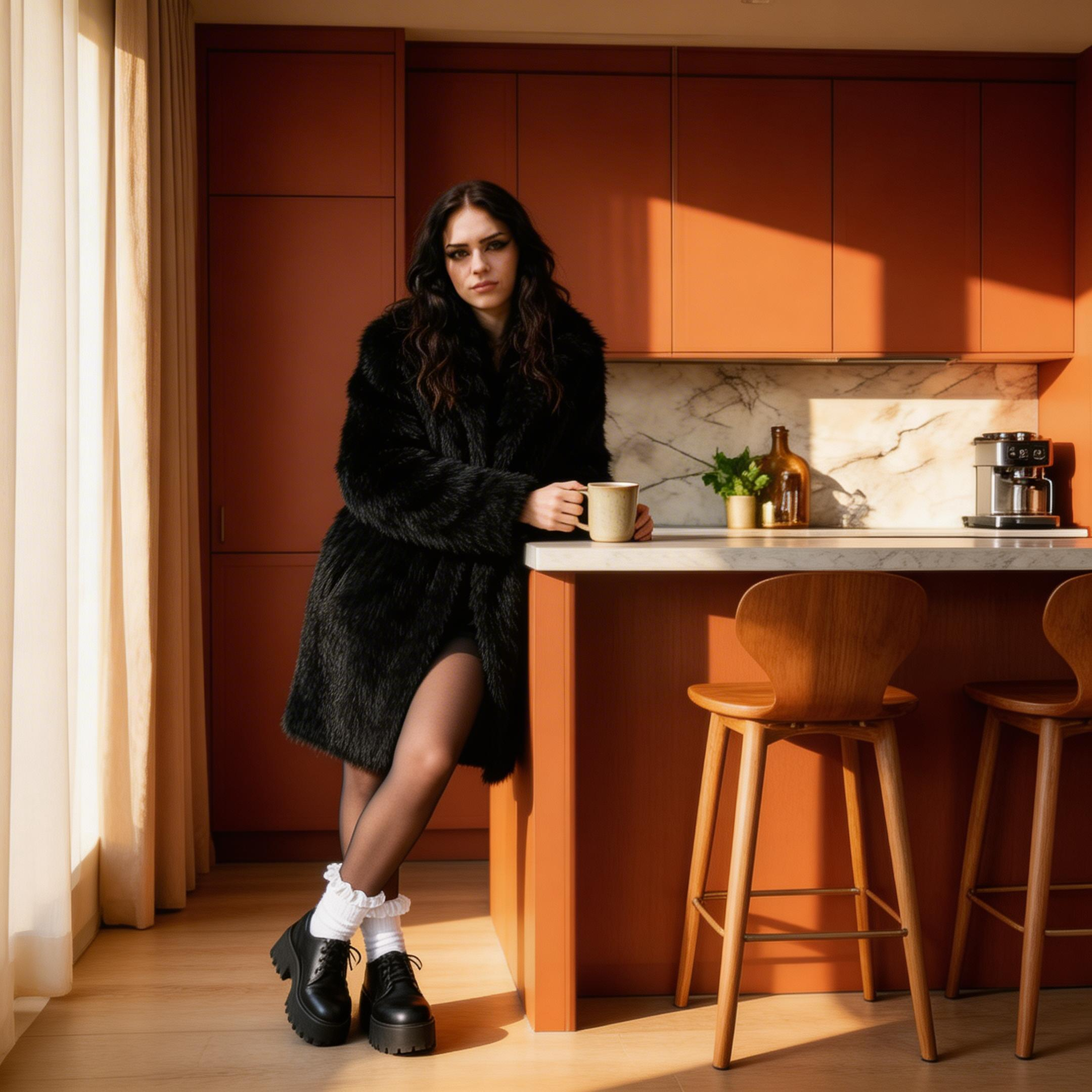
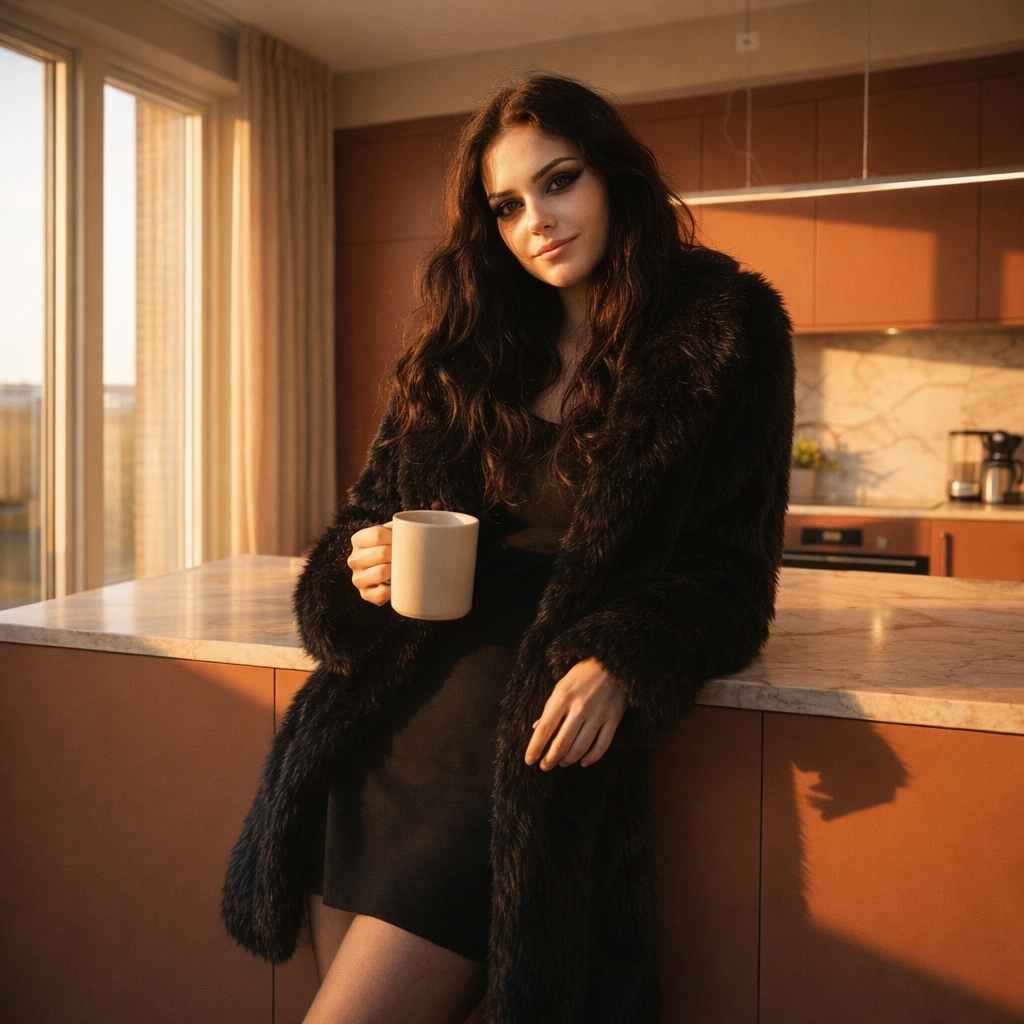
How to Create Elements
Now that you’re familiar with using and combining Elements, let’s create a new one using an output image from the previous section. By now, you should be familiar with how to access the Elements page.Step 1:
Click on Create element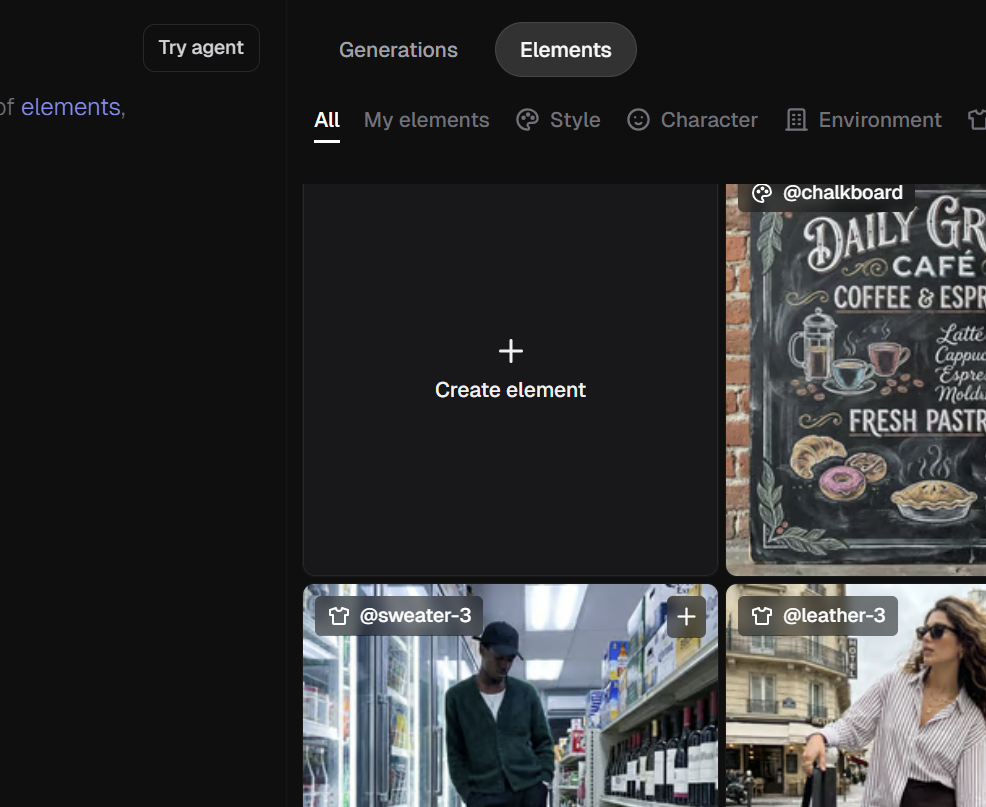
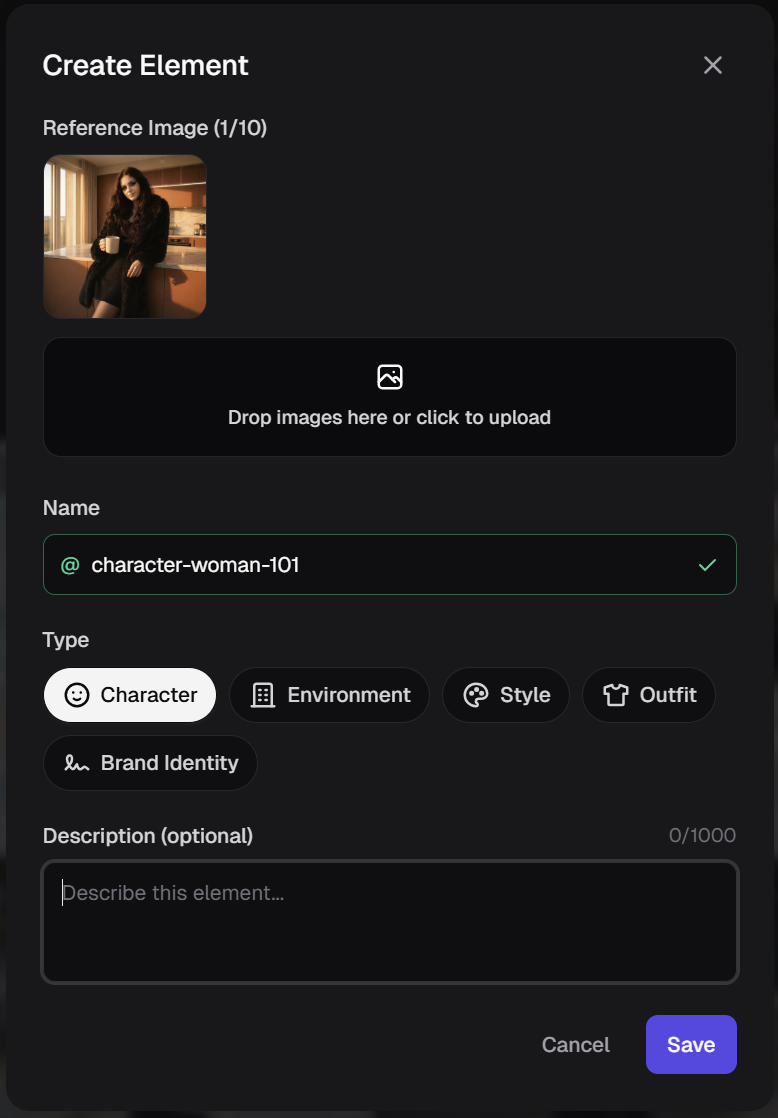
Step 2:
Click to upload or drag and drop the image into the reference image box. Now give it a Name. Then select the Type. (You can also add an optional description.) Finally, hit Save. Next, click My Elements on the top menu to view your elements.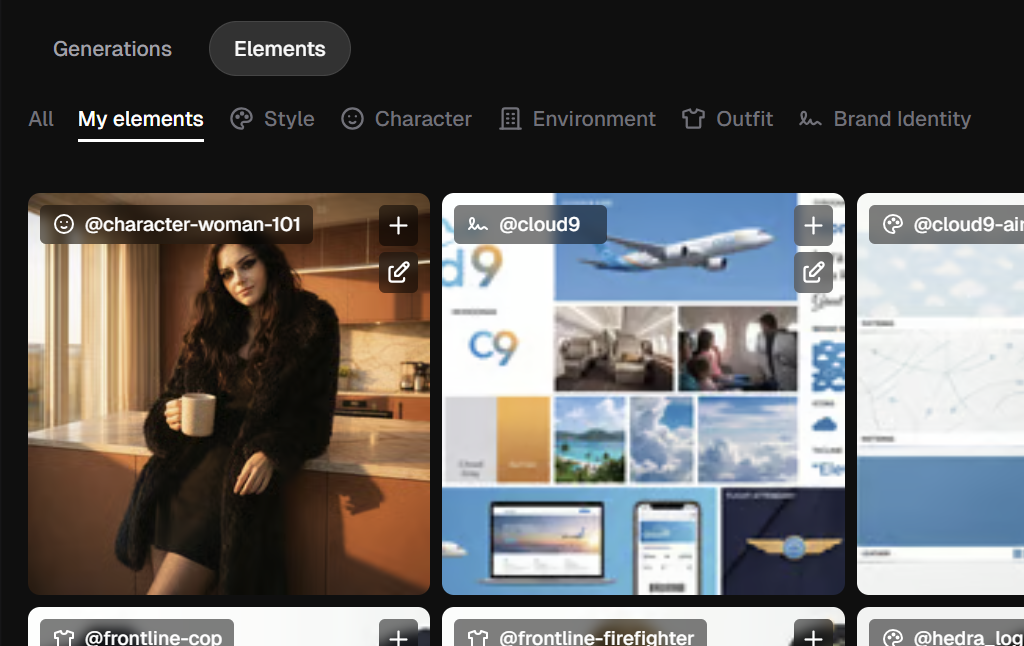
Tip: You can call your element into the prompt box by using @your-element-name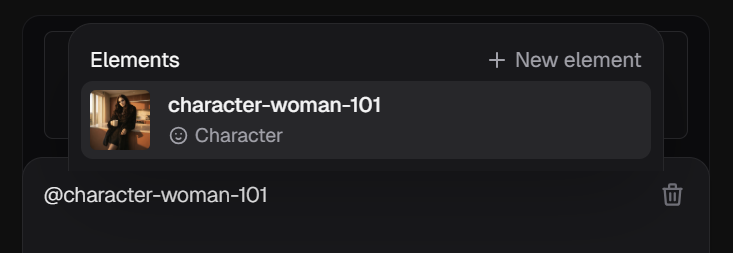
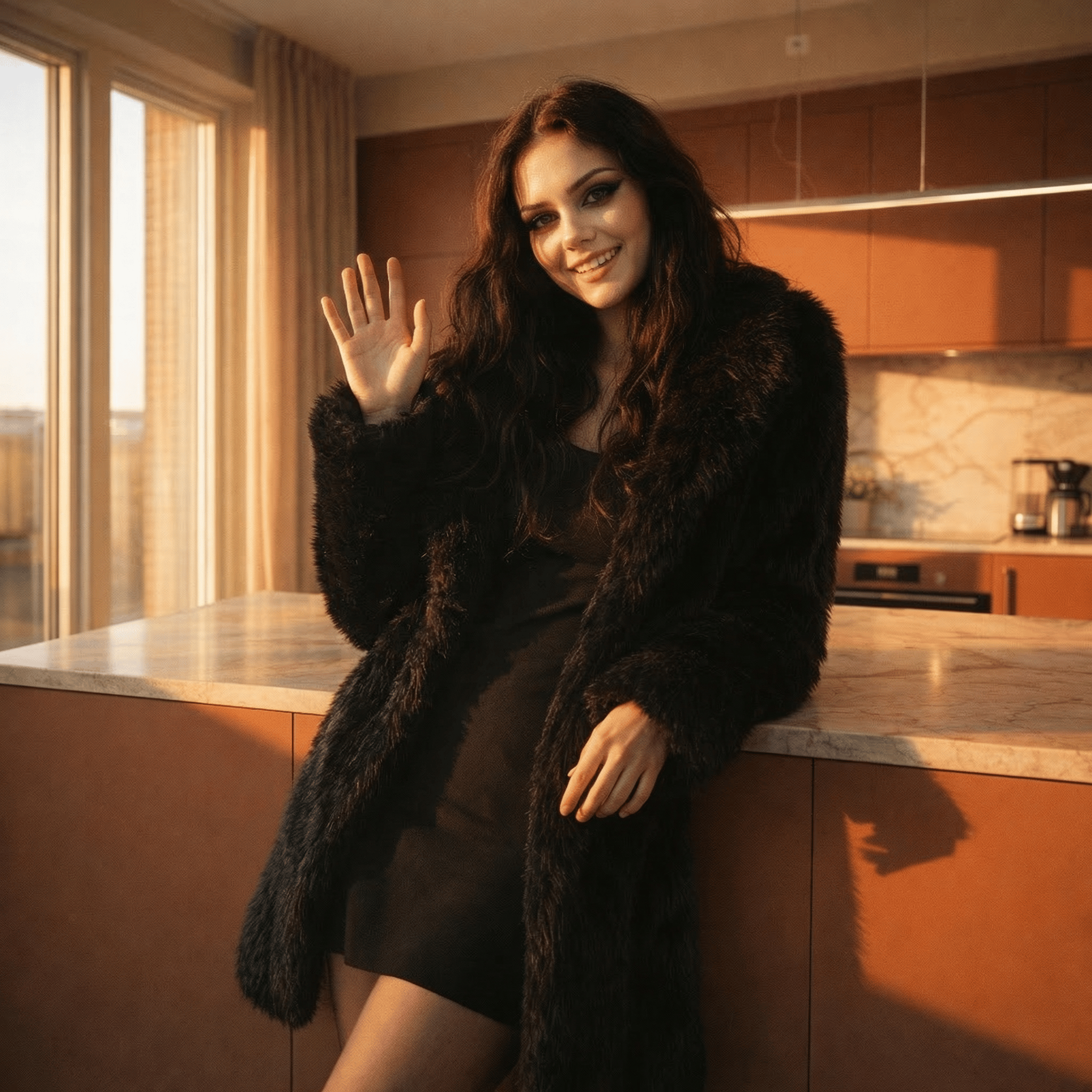
Prompt: Character is waving at the camera.Click to generate and done!
For Best Results
- Use close-up shots for character elements.
- Use 16:9 images to create environment elements.
- Name and tag Elements so they’re easy to find later.
- Start with Elements first, then refine your prompts around them.
What’s Next?
Once you’re comfortable with using, combining and creating elements, try moving to the next level. Elements 201: Content Creators Some of the things you’ll learn:- Intro to Advanced Elements
- Designing Elements for Control
- How to Identify Drift in Design
- Strong Anchors for Easy Prompts
- Building Makeup Kits into Styles