GPT Image 2 Medium
The balanced workhorse — photoreal product shots and accurate text for everyday commercial work, at a sensible cost.
Overview
GPT Image 2 Medium is the balanced quality tier of OpenAI's flagship image generation model, delivering high fidelity at a lower cost than GPT Image 2 High. Built with native reasoning capabilities, it is a significant architectural update over GPT Image 1.5. This tier is effective for commercial workflows, excelling at accurate multilingual text rendering, photorealistic product photography, and complex layout planning for UI mockups.
GPT Image 2 Medium Image to Image
Image → Image (edit) generation.
Specifications
- Input mode
- Image → Image (edit)
- Aspect ratios
- 16:9, 9:16, 4:3, 3:4, 1:1
- Pricing
- 20 credits / image — higher resolutions cost more
- Typical generation time
- ~64s
- Free tier
- Yes
Image → Image (edit) examples
GPT Image 2 Medium Text to Image
Text → Image generation.
Specifications
- Input mode
- Text → Image
- Aspect ratios
- 16:9, 9:16, 4:3, 3:4, 1:1
- Pricing
- 20 credits / image — higher resolutions cost more
- Typical generation time
- ~49s
- Free tier
- Yes
Text → Image examples
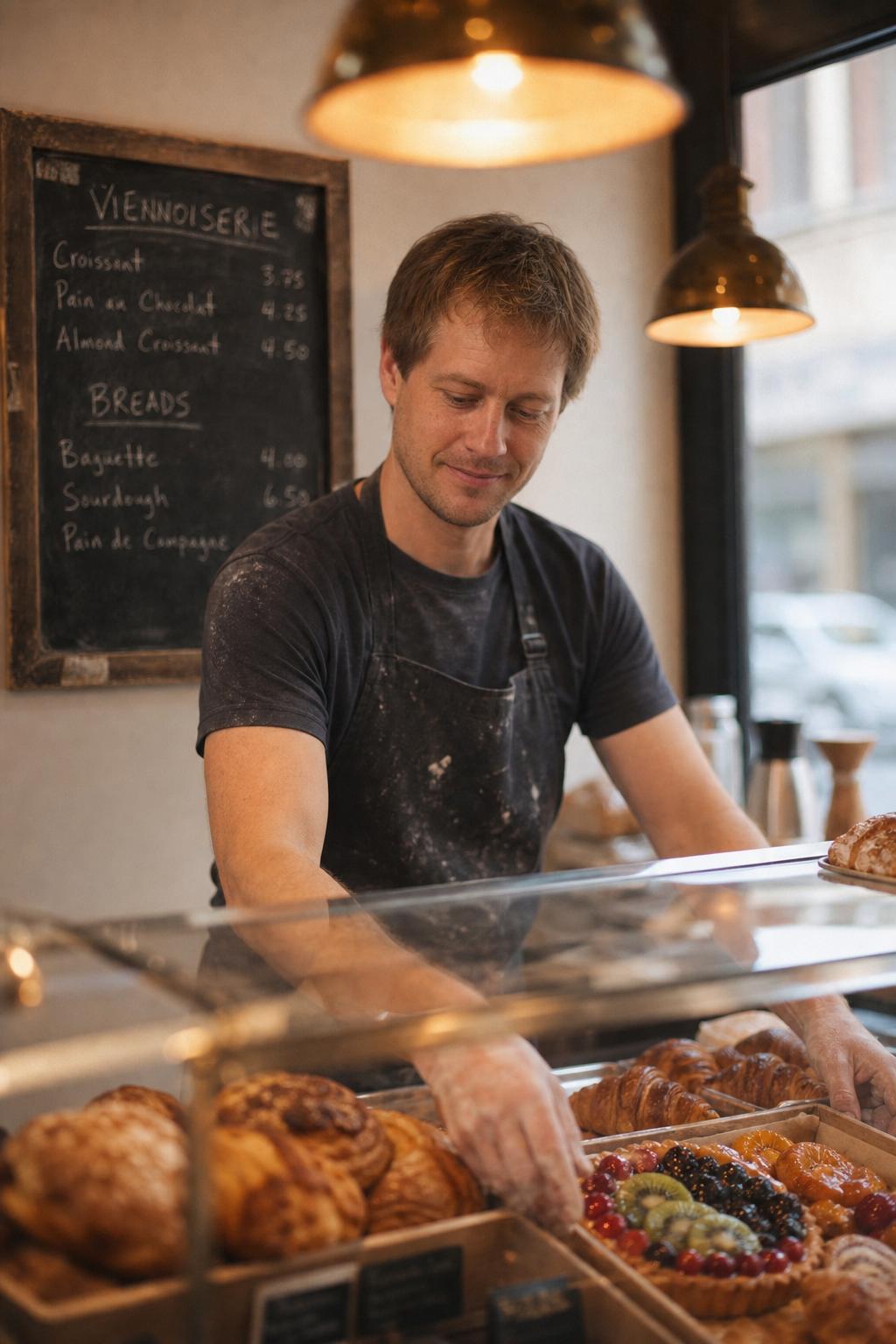 Bakery Owner Behind the Case, by GPT Image 2 Medium
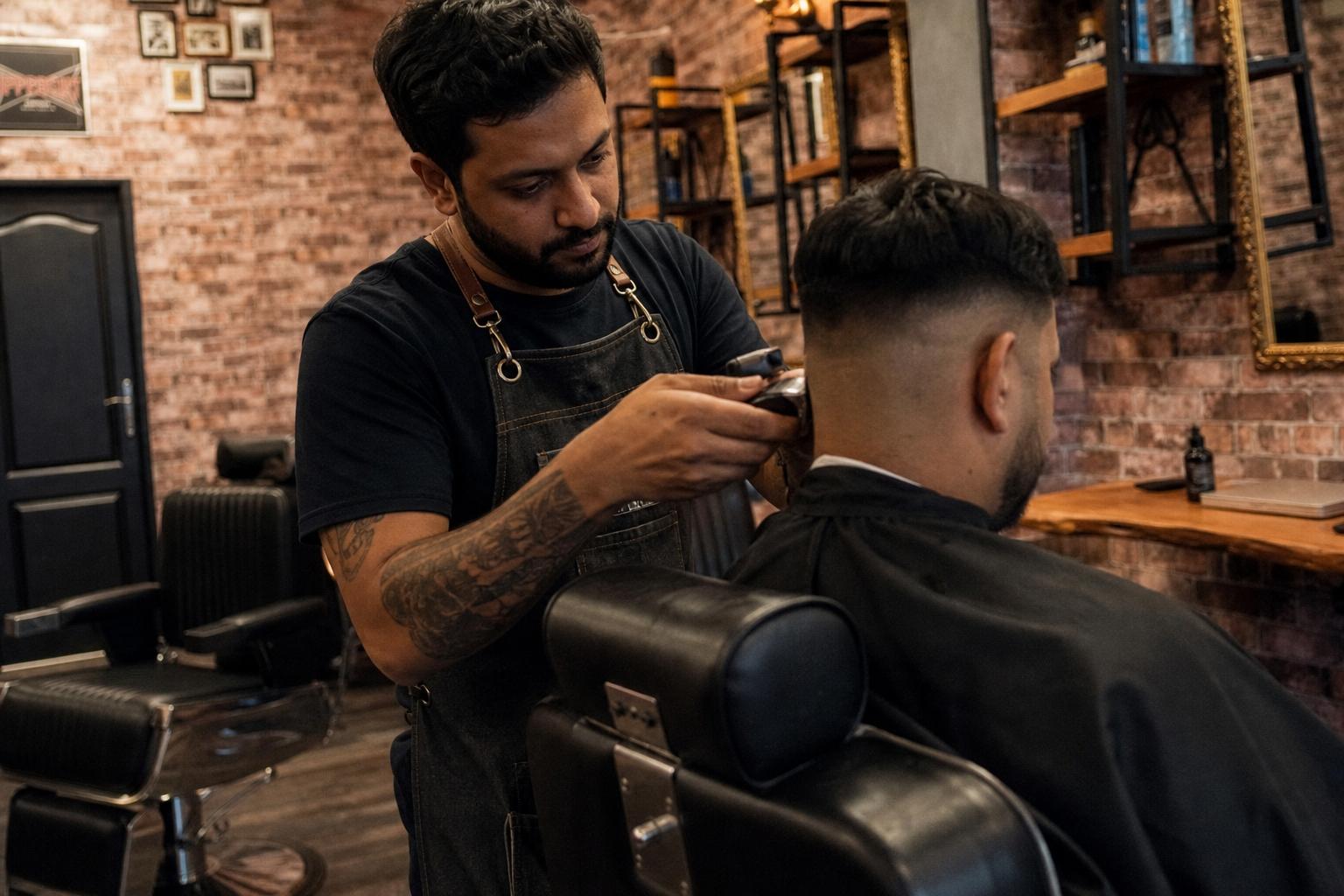 Barber at Work in a Real Shop, by GPT Image 2 Medium
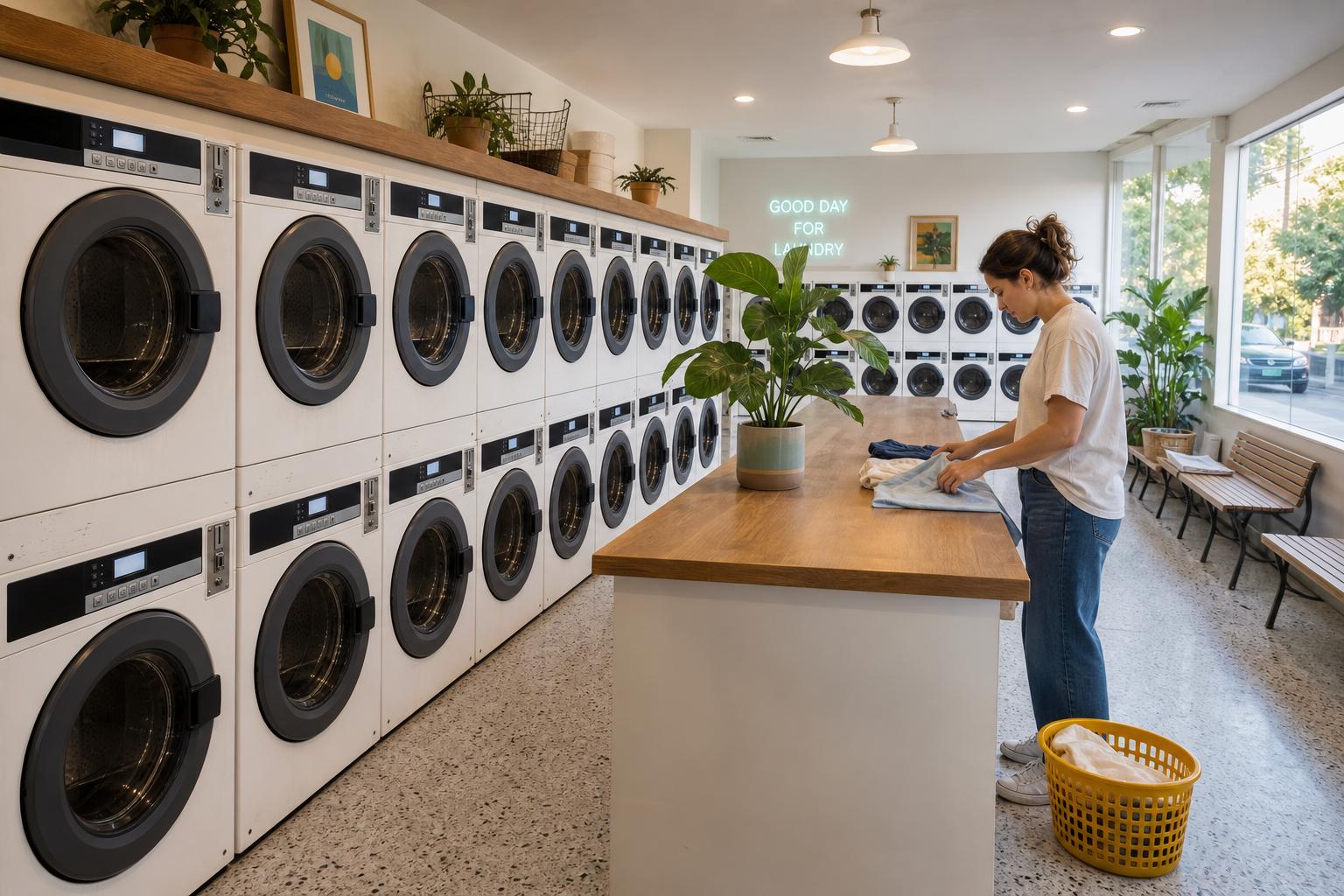 Modern Laundromat, by GPT Image 2 Medium
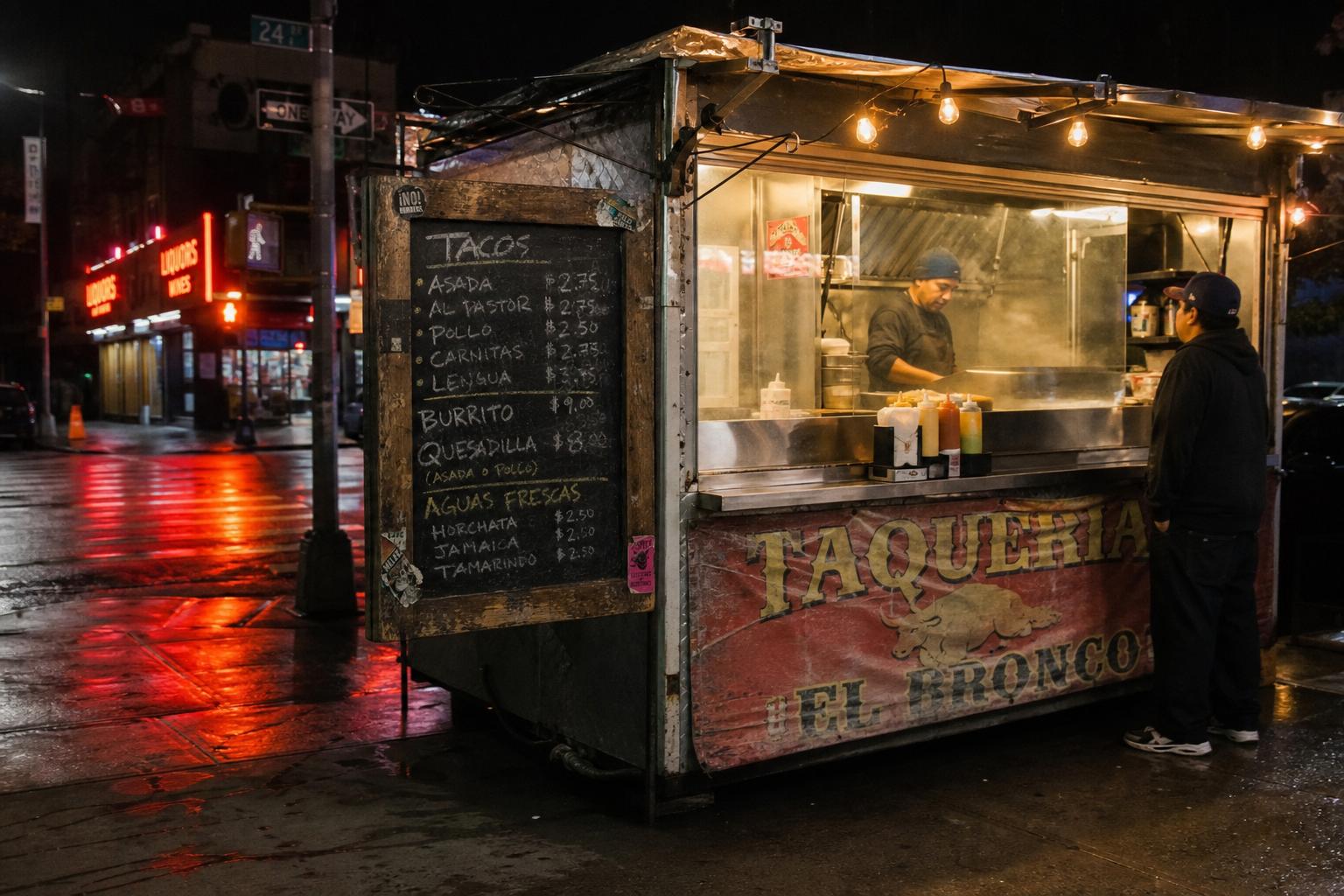 Late-Night Taco Cart, by GPT Image 2 Medium
 Rafting Outfitter Sign-Up Booth, by GPT Image 2 Medium
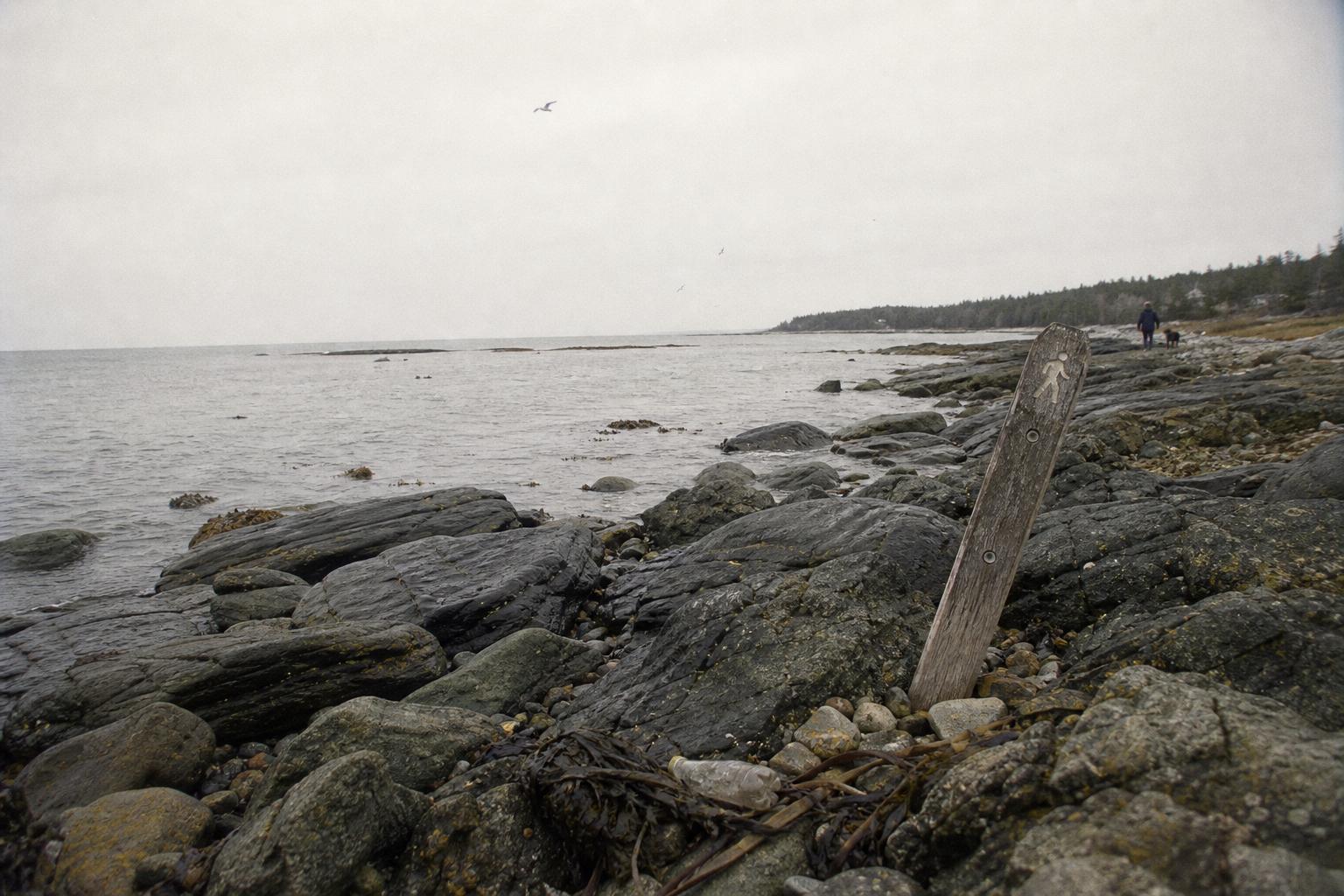 Overcast Coastline, by GPT Image 2 Medium
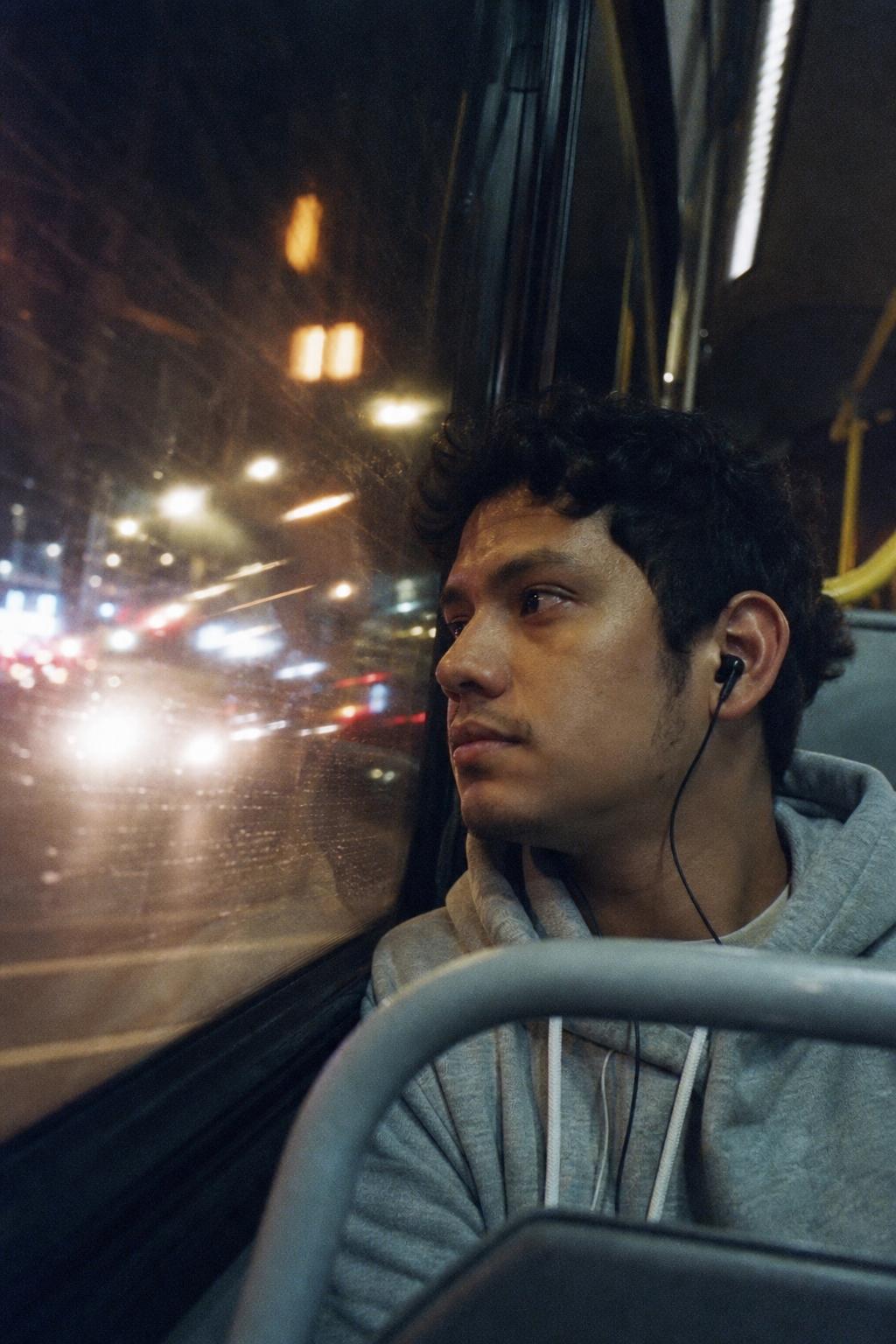 Night Bus Window Reflection, by GPT Image 2 Medium
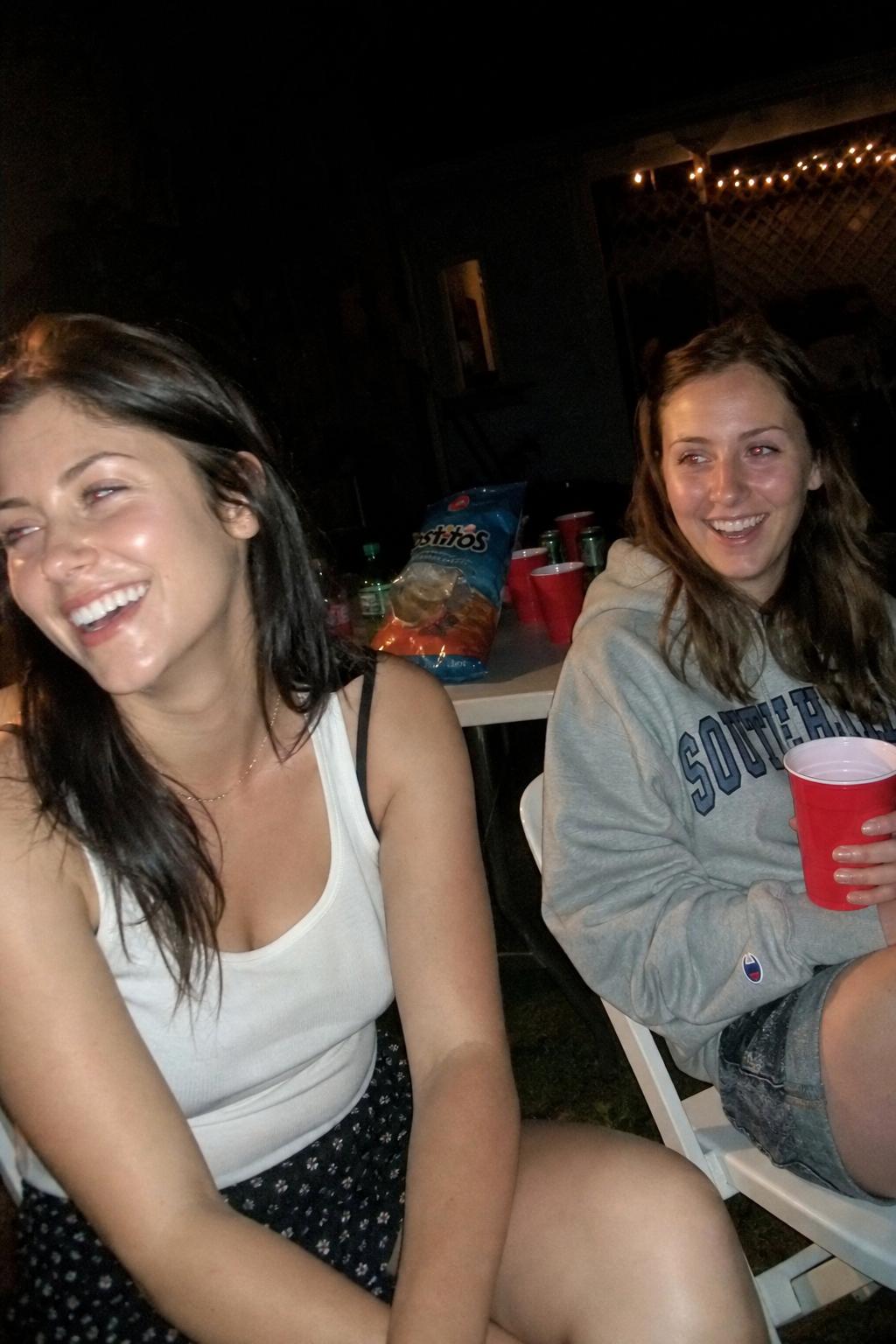 Backyard Party Flash Snapshot, by GPT Image 2 Medium
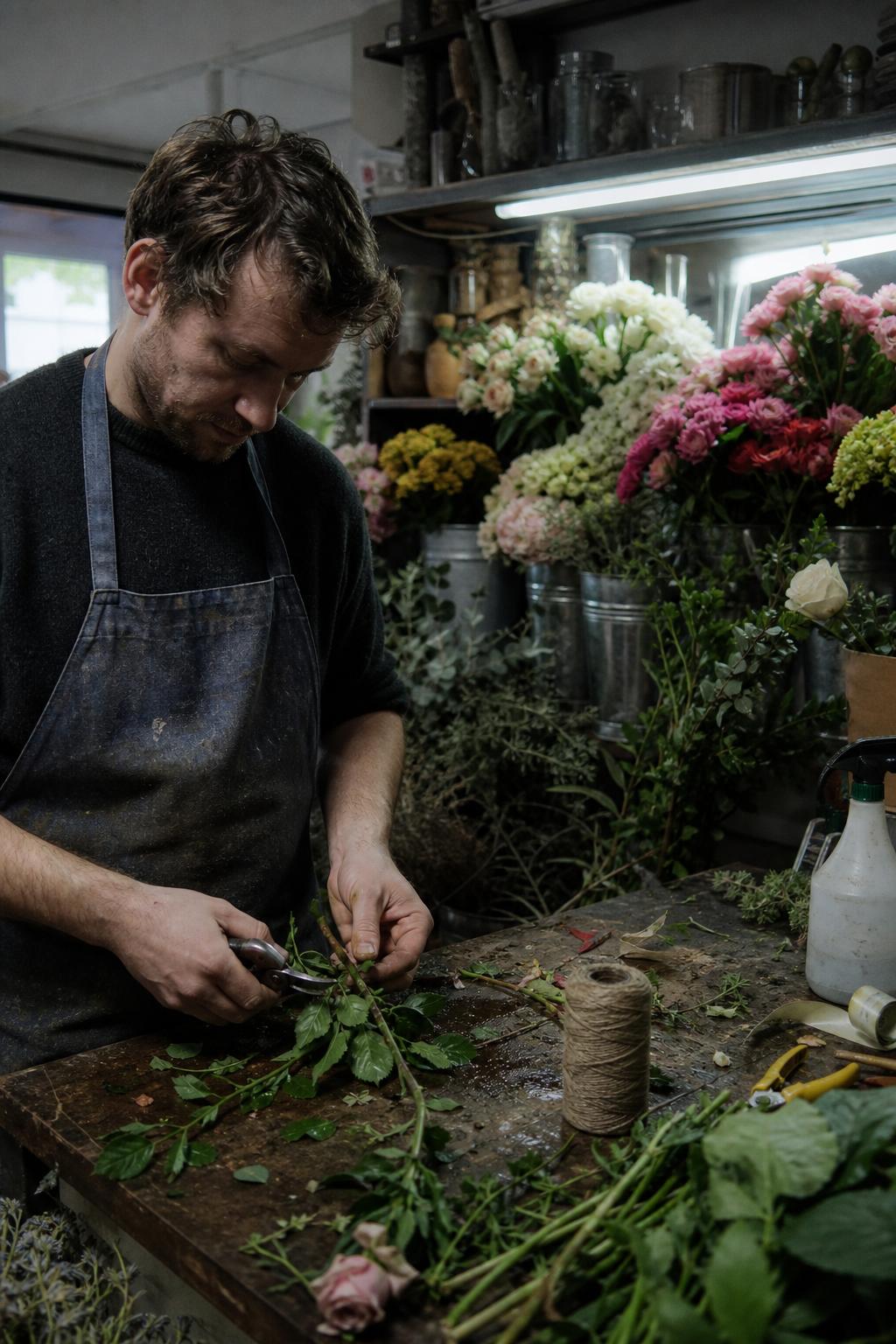 Flower-Shop Owner at Work, by GPT Image 2 Medium
 Boutique Yoga Studio Owner, by GPT Image 2 Medium
What is GPT Image 2 Medium best used for?
This model is highly capable of precise text rendering and product photography. Community benchmarks and OpenAI's documentation indicate it consistently generates clean typography, multilingual text (including CJK scripts), and accurate UI mockups. It uses a reasoning-first approach to composition, allowing it to plan layouts for landing pages or infographics natively. It also produces neutral, photorealistic colors that avoid the glossy look common in older generation models.
How does GPT Image 2 Medium fit into OpenAI's model lineup?
Released on April 21, 2026, it is the mid-tier variant of OpenAI's image generation family, replacing GPT Image 1.5. It sits between GPT Image 2 Low and GPT Image 2 High, balancing cost and quality. It was the first OpenAI image model to introduce built-in reasoning for layout planning and native 4K support.
How can I get the best results and optimize costs with GPT Image 2?
For prompting, community guides recommend quoting literal text, specifying typography and placement, and explicitly stating preserve/change constraints during image edits. A documented workflow trick for budget-sensitive projects is to generate base images using GPT Image 2 Low, then chain the output into an upscaler for near-4K resolution. This avoids the higher native costs of the High tier.
Similar models
Prompt tips
- Quote literal text: Use quotation marks for any exact copy you want rendered in the image, and explicitly specify the desired typography and placement.
- Leverage spatial instructions: Because of its reasoning capabilities, you can explicitly dictate layout structures (e.g., "place the headline in the top-left quadrant").
- Use preserve/change constraints: When using the edit endpoint, explicitly state which elements should be changed and repeat the constraints for elements that must remain stable.
- Upscale for 4K workflows: To save on costs, generate initial concepts at the Medium or GPT Image 2 Low tier, then use an external upscaler for near-4K output rather than generating natively at maximum resolution.