Veo 3
Overview
Veo 3 is an advanced video generation model developed by Google DeepMind. It produces high-fidelity, 8-second clips at 1080p resolution from text or image prompts, standing out for its ability to generate synchronized native audio like dialogue and sound effects. With strong prompt adherence and realistic physics, it is highly effective for creators building cinematic, fully sound-tracked scenes. For faster generation, users can explore Veo 3 Fast or the updated Veo 3.1.
Veo 3 Image to Video
Image → Video — generates video.
Specifications
- Input mode
- Image → Video
- Accepts
- start frame
- Aspect ratios
- 16:9, 9:16
- Resolutions
- 720p, 1080p
- Durations
- 4s, 6s, 8s
- Max duration
- 8s
- Native audio
- No
- Pricing
- 55 credits / second — longer clips and higher resolutions cost more
- Typical generation time
- ~2 min
- Free tier
- No
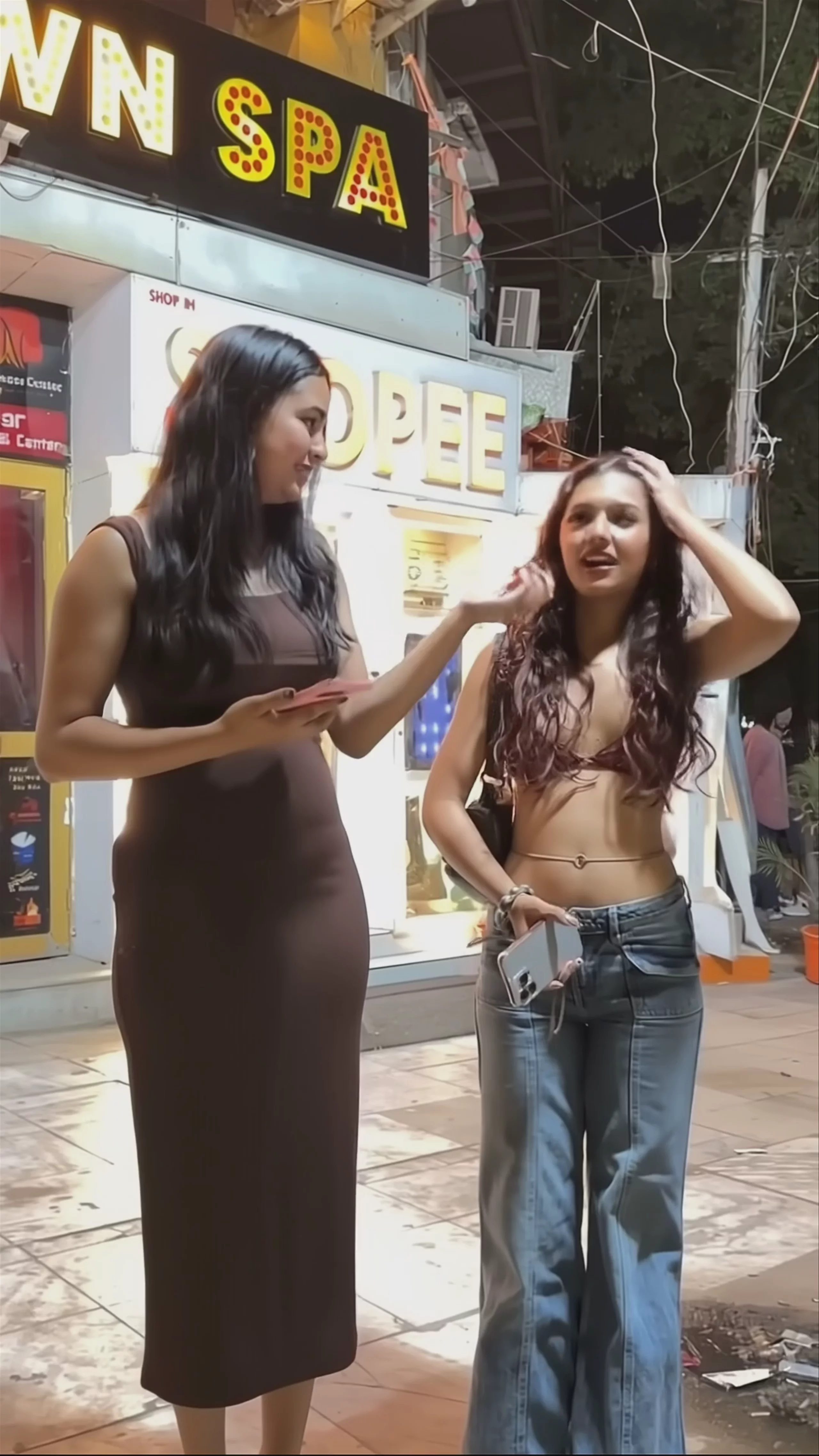
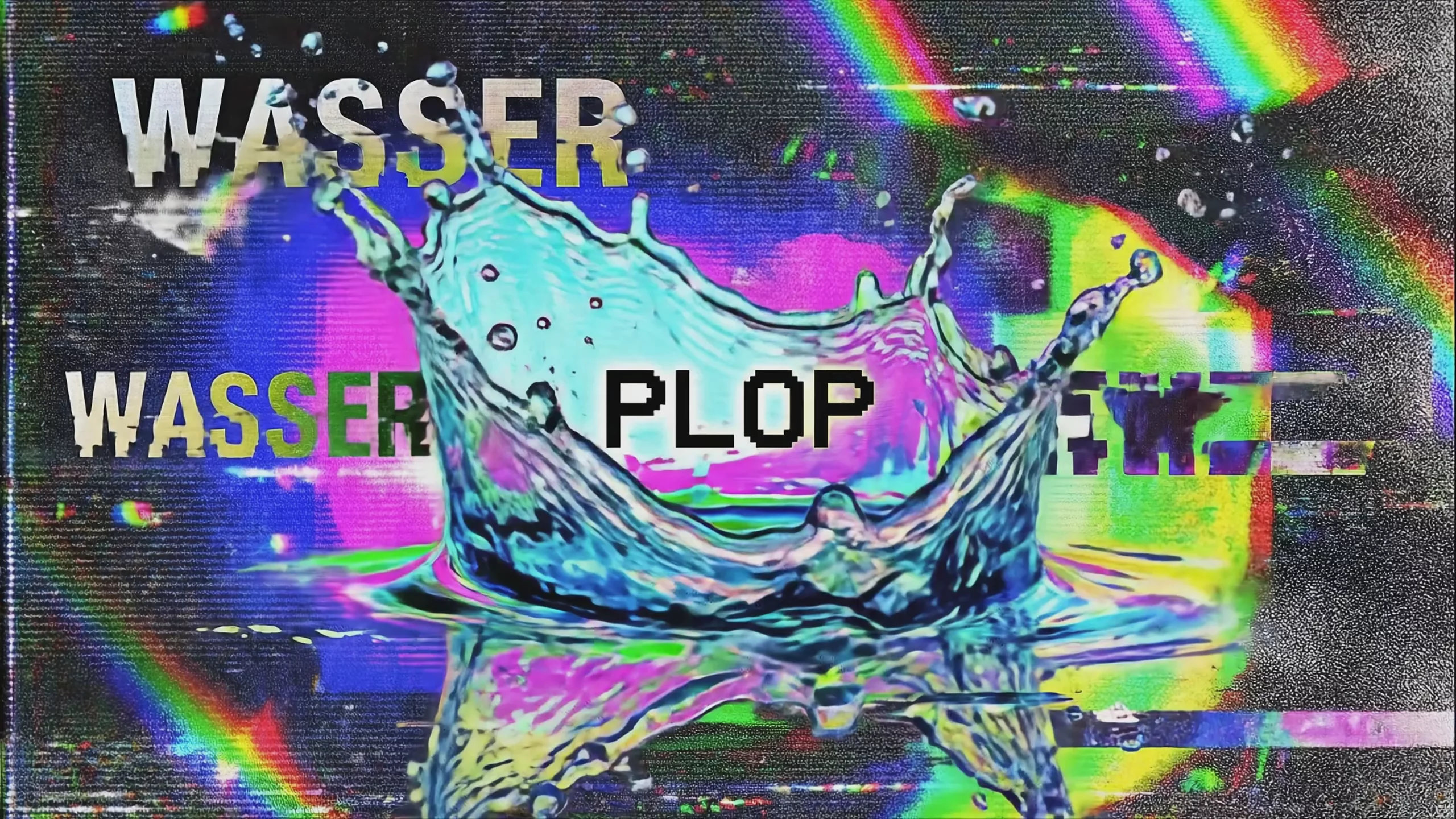
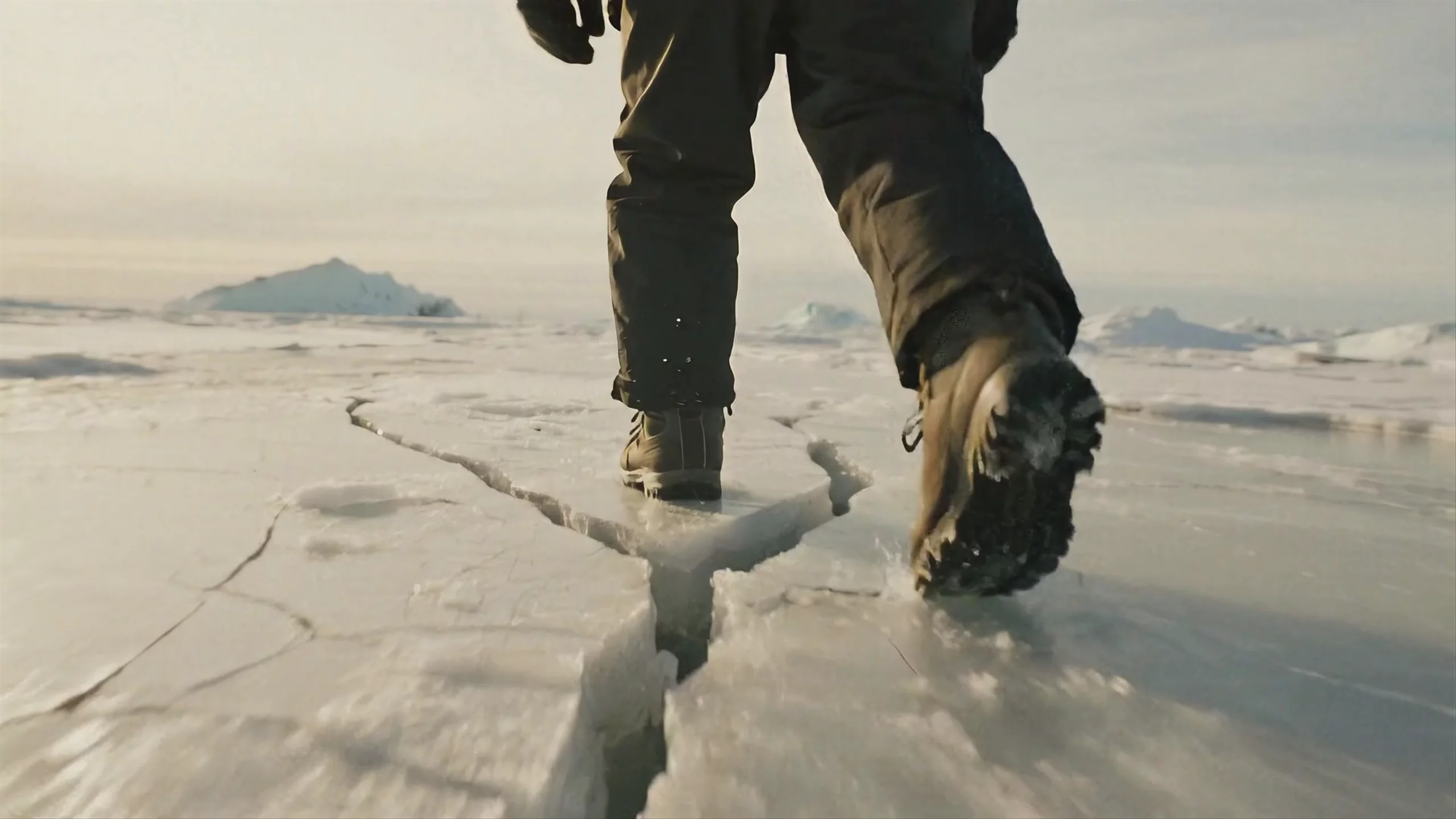
Image → Video examples

Veo 3 Text to Video
Text → Video — generates video.
Specifications
- Input mode
- Text → Video
- Aspect ratios
- 16:9, 9:16
- Resolutions
- 720p, 1080p
- Durations
- 4s, 6s, 8s
- Max duration
- 8s
- Native audio
- No
- Pricing
- 55 credits / second — longer clips and higher resolutions cost more
- Typical generation time
- ~2 min
- Free tier
- No
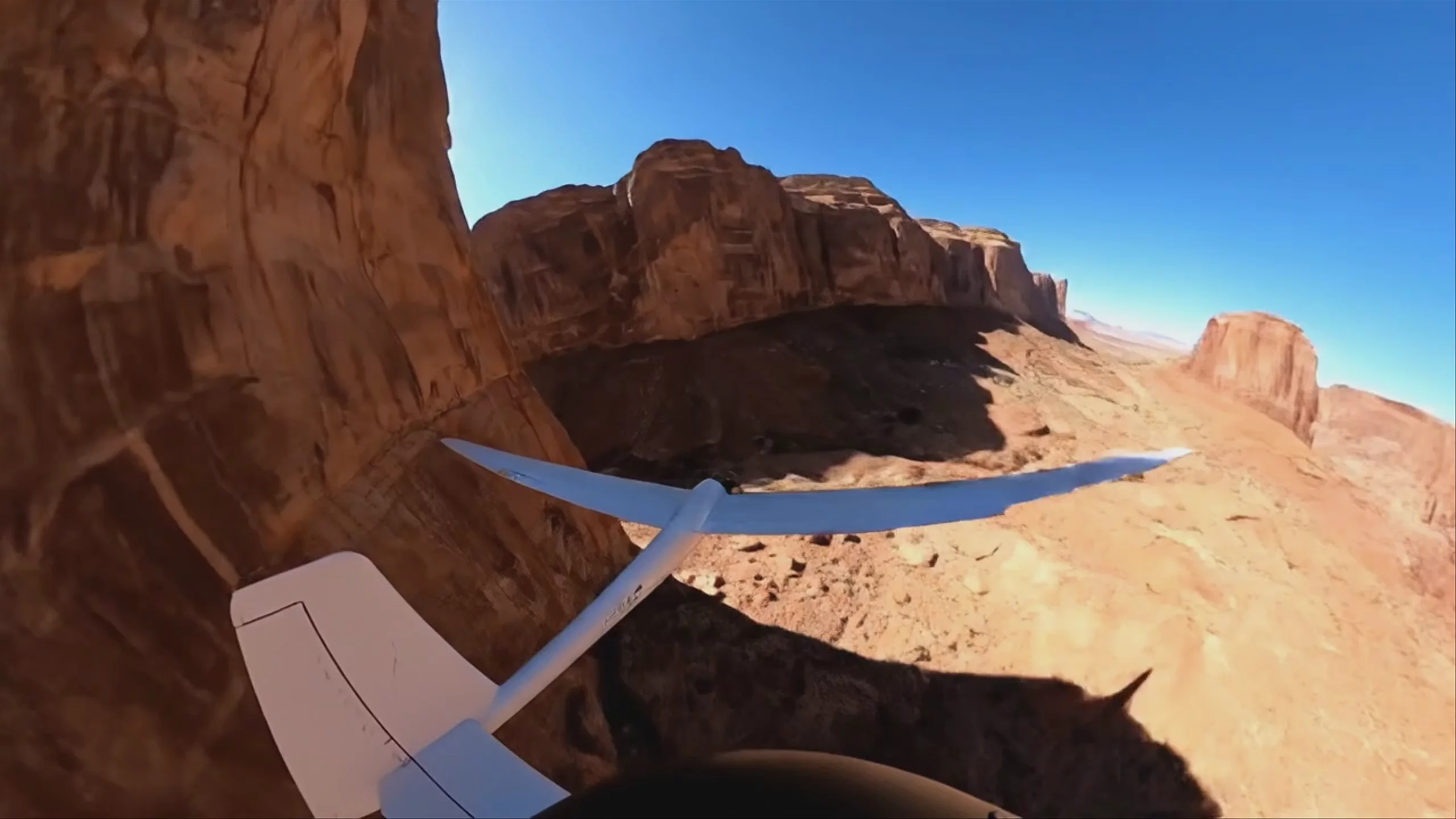
Text → Video examples
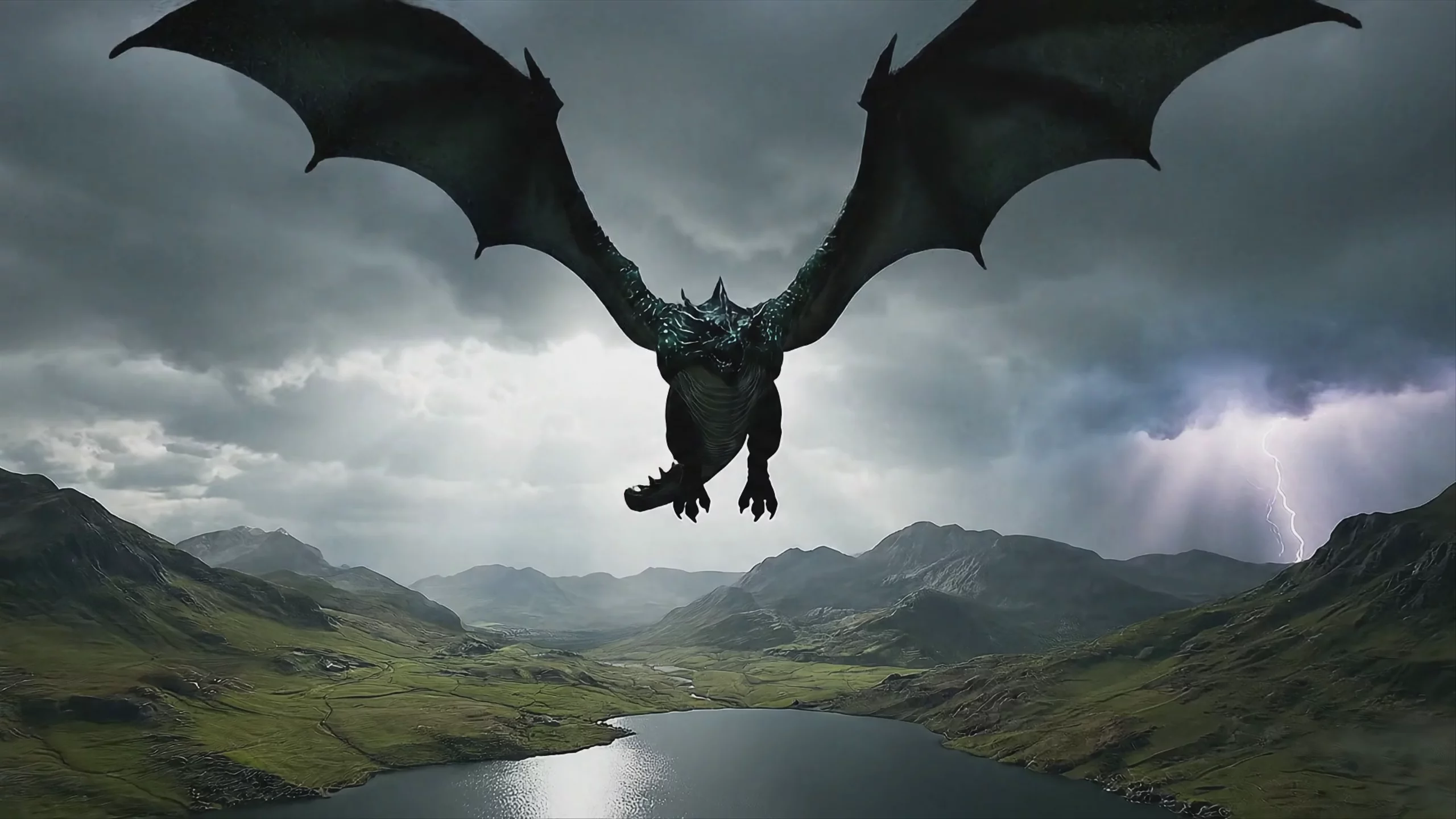
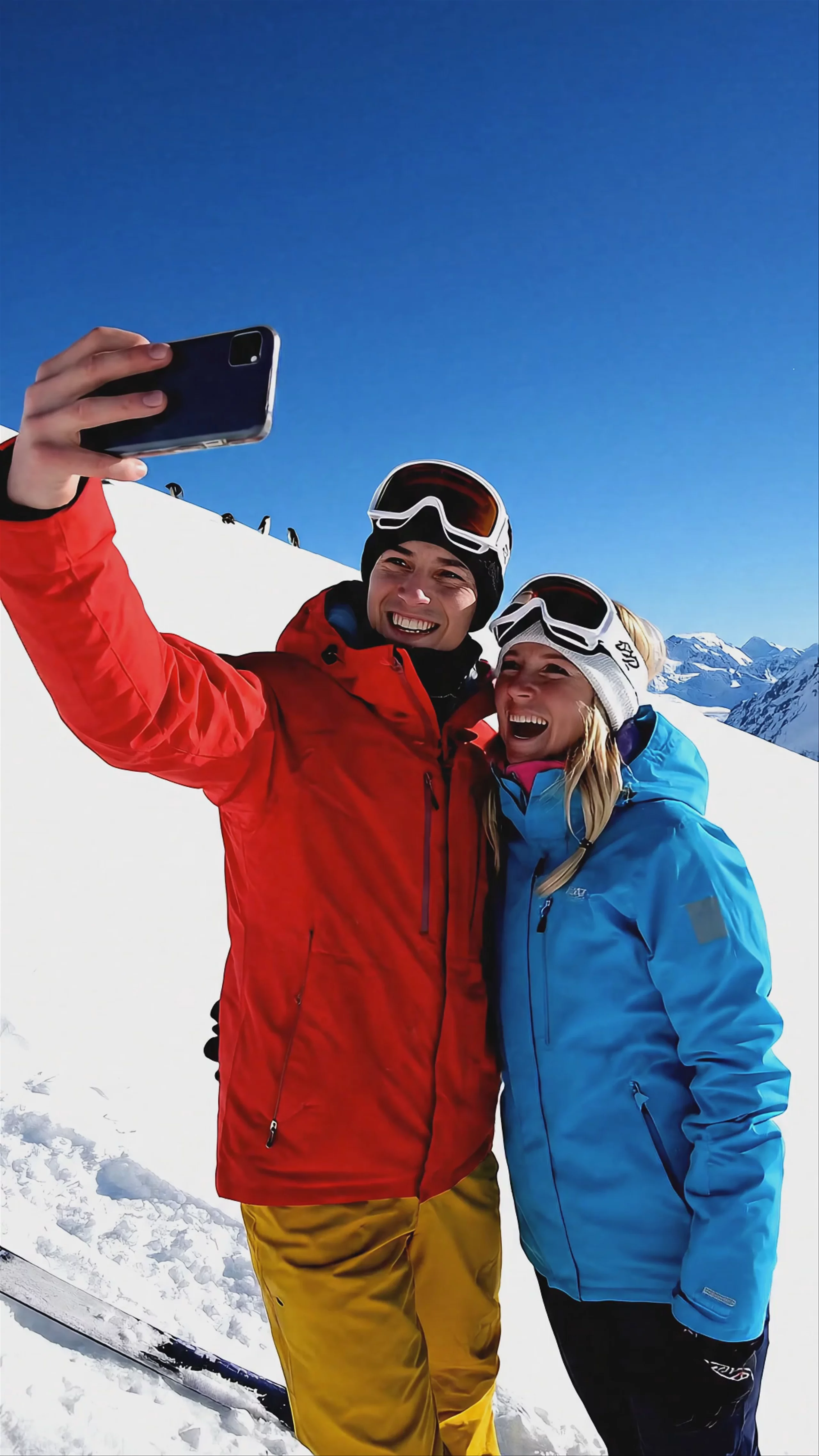
What is Veo 3 best used for?
Veo 3 generates realistic 8-second video clips at 1080p and 4K resolutions with native, synchronized audio. Instead of relying on separate audio tools, it generates dialogue, ambient noise (like traffic or crashing waves), and sound effects directly alongside the visuals. Community feedback highlights its physical realism, natural lighting, and strong adherence to complex text prompts.
Who created Veo 3 and what are its related models?
Developed by Google DeepMind, Veo 3 was officially announced at Google I/O on May 20, 2025, succeeding Veo 2. In our catalog, you can also access its faster variant, Veo 3 Fast. Subsequent updates introduced Veo 3.1 and Veo 3.1 Fast, which added advanced reference-to-video and first-and-last-frame controls for tighter compositional accuracy.
How can I ensure character consistency across Veo 3 clips?
While Veo 3 follows text prompts well, text-to-video generation can sometimes struggle with continuity. To lock in character details, use image-to-video prompting. Providing a reference image of your subject alongside your text prompt helps maintain a consistent face and style across multiple generated scenes. For tighter control, Veo 3.1 allows for first-and-last-frame conditioning.
Can I control the audio generation in my prompts?
Because Veo 3 generates audio natively, you should write specific audio cues directly into your text prompt. Adding phrases like 'gentle piano music plays softly in the background' or 'he gasps and says with emotion, You remembered' instructs the model to generate matching sound effects and dialogue synced to the video. For more prompt structures, review the Visual Recipe Lab.
Similar models
Prompt tips
- Use a Structured Formula: Break your prompts down explicitly by defining the Scene, Style, Character, Action, Dialogue, Camera Direction, and Sound in separate clauses.
- Direct the Audio Engine: Explicitly prompt for soundscapes (e.g., "ambient traffic noise," "heavy footsteps," or "dialogue: 'Look at that'") to trigger the native audio generation.
- Leverage JSON Prompting: For complex advertisements or scenes, structuring your prompt in JSON format can help the model better parse distinct elements like camera motion and lighting.
- Anchor with Image-to-Video: To maintain character consistency across shots, generate a strong reference image first and use it as the visual anchor for your video prompt.