How To Create Training Videos That Employees Actually Watch
Learning how to create training videos is one of the most valuable skills a modern L&D professional, marketer, or team lead can develop.
Companies that rely on static PDFs and long text documents are losing ground to organizations that deliver knowledge through clear, engaging video. The numbers confirm this shift.
Multiple research and industry reports indicate that video and audiovisual learning methods improve information retention compared with text-only formats, with learners consistently showing higher post-test scores when content is delivered visually and aurally rather than through text alone (Hurix, 2025).
Employees are more likely to rewatch a video than re-read a manual. For teams that need to onboard quickly, train at scale, or maintain consistency across regions, training video production is no longer optional.
This guide walks through every stage of the process.
From planning your content to publishing it in your LMS, you will leave with a repeatable system you can use immediately.
Why Most Training Videos Fail Before They Start
Most organizations approach training video production the wrong way. They sit someone in front of a camera, hit record, and hope the content lands. It rarely does.

The failure happens at the planning stage. Without a clear learning objective, writers produce scripts that cover everything and teach nothing. Without understanding the audience, producers build content at the wrong complexity level.
Three problems account for the majority of failed training videos:
- No defined learning objective: Viewers do not know what they are supposed to learn or do differently after watching.
- Scripts written for readers, not viewers: Dense paragraphs that work on a slide deck collapse on screen.
- Wrong format for the content type: A compliance update does not need a full production shoot. A complex software workflow does.
Understanding these failure points is the foundation of everything that follows.
Step 1: Define Your Learning Objective Before You Do Anything Else
Every training video must answer one question before production begins: what should the viewer be able to do, say, or understand after watching?
This is called a learning objective, and it shapes everything, including the script, the format, the length, and the way you measure success. A strong learning objective is specific, measurable, and tied to a real behavior change.
Weak Objective | Strong Objective |
"Understand our onboarding process" | "Complete the three-step account setup without assistance after watching" |
"Learn about data security" | "Identify and report a phishing email using the internal reporting tool" |
"Know the product features" | "Demonstrate three use cases during a client demo" |
Write your learning objective in one sentence before you open any video software. If you cannot write it in one sentence, the content scope is too broad.
Step 2: Know Your Audience Before You Write a Single Word
Audience analysis is the step most teams skip. They produce training videos for a generic "employee" who does not exist.
The audience determines the vocabulary, the assumed baseline knowledge, the examples used, and the tone. A training video for a frontline retail associate requires a very different language than one built for a senior software engineer.
Answer these four questions before writing your script:
- What does this person already know? Avoid over-explaining basics to experienced employees or assuming knowledge in new hires.
- What is their primary frustration or pain point? Hook them by naming the problem they recognize.
- Where will they watch this? Mobile-first employees need shorter videos with large on-screen text. Desktop viewers tolerate more detail.
- What will they do immediately after watching? Design the video to make that action obvious and easy.
Audience analysis does not require a research study. A ten-minute conversation with two or three people who represent your viewers is enough to calibrate your approach.
Step 3: Choose the Right Training Video Format
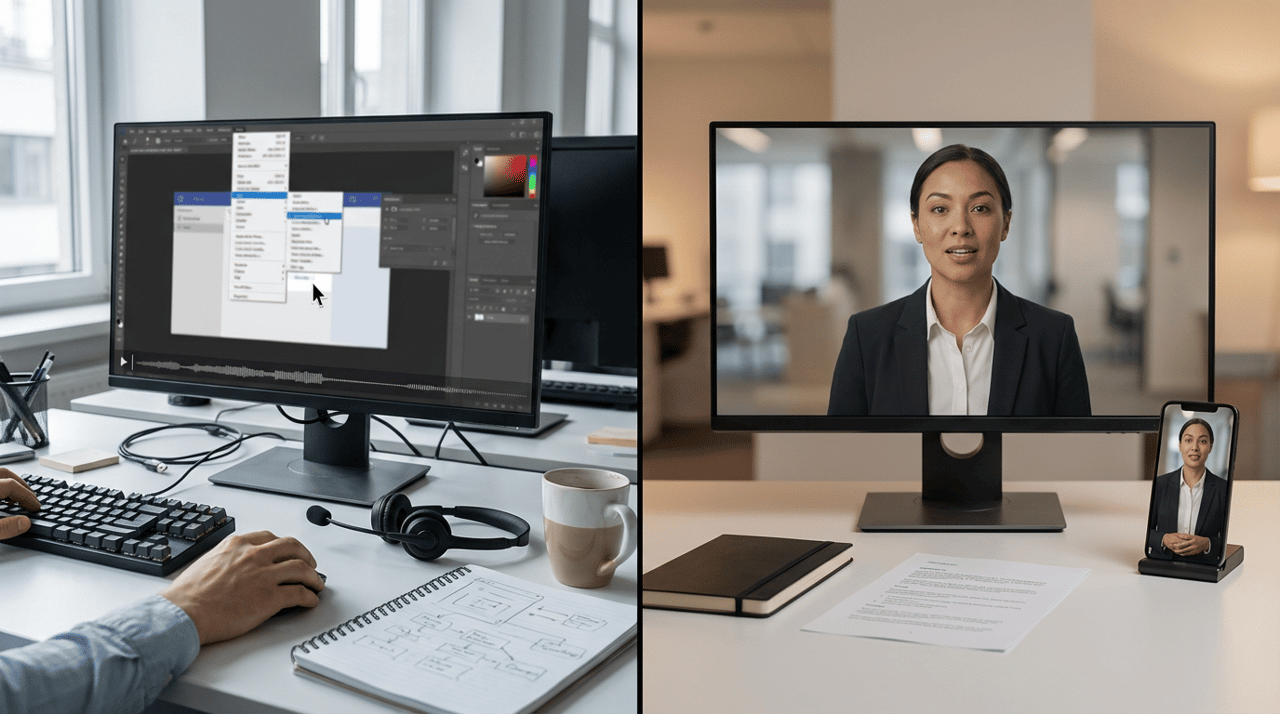
Not every training need calls for the same type of video. Choosing the wrong format wastes production time and reduces effectiveness. The table below matches common training needs to the right video format.
Training Need | Best Video Format | Why It Works |
Software walkthroughs | Screen recording with voiceover | Shows the exact interface learners will use |
Company culture and values | Talking head or presenter-led | Human connection builds trust and engagement |
Safety and compliance | Scenario-based or animated | Dramatizes consequences without real-world risk |
Product knowledge | Demo video with callouts | Highlights features in action |
Remote onboarding | AI presenter or avatar-led | Consistent delivery at scale with no scheduling constraints |
Process documentation | Screencast + annotations | Easy to update when processes change |
The most common mistake is defaulting to a talking head video for every topic. Talking head videos work well when the human connection matters. They work poorly for software training, step-by-step processes, and technical documentation.
Step 4: Write a Script That Works on Screen
A training video script is not a narrated document. It is a performance guide.
The best training video scripts are written at a conversational pace, structured around one idea per sentence, and built to match the visuals that will accompany them. Professional video scripting practice commonly uses a spoken pace of approximately 125 to 150 words per minute for instructional and explainer content, balancing comprehension with engagement (LetterCounter, 2026).
Follow this structure for every training video script:
The Hook (First 15 seconds)
Name the problem or outcome immediately.
Do not open with a company logo slate and a welcome message. Viewer engagement tends to decline sharply in the first few seconds of a video, which is why capturing attention immediately with a clear hook or outcome improves watch-through rates (Wistia).
Example opening: "By the end of this video, you will know exactly how to submit an expense report without sending it back for corrections."
The Body (Middle section)
Break the content into three to five distinct steps or points. Each point gets its own visual treatment. Avoid walls of narration without something changing on screen every eight to twelve seconds.
The Close (Final 15 seconds)
Summarize the single most important action the viewer should take. Include a direct prompt: "Your next step is..." or "Open the platform now and complete..."

Step 5: Record or Generate Your Video Content
This is the stage where format choice meets production reality. The right recording method depends on the format you selected in Step 3.
Screen Recording
Screen recording is the fastest method for software and process training. Tools like Loom or Camtasia capture your screen and microphone simultaneously. Record in a quiet space, use a USB microphone if possible, and script your narration in advance rather than improvising.
On-Camera Recording
On-camera recording requires the most equipment and the most preparation. Use natural light from a window in front of you, not behind. Record in a space with minimal echo. Keep the camera at eye level. Read from a teleprompter script rather than trying to memorize content.
AI-Generated Video
AI video generation has made it possible to produce training content at scale without a camera, a studio, or a presenter.
Platforms like Hedra let teams combine a script, a presenter image, and an audio track in a video workflow. Choose an audio-driven model for presenter footage, review the result, and assemble it with the rest of your training material. When the script changes, you can regenerate the relevant clips without reshooting.
This approach is particularly valuable for L&D teams managing large content libraries, multi-language training programs, or frequent process updates. Learn more about creating AI characters for video.

Step 6: Edit for Clarity, Not Length
The goal of editing is not to shorten the video. The goal is to remove everything that does not serve the learning objective.
Start with audio. Remove filler words, long pauses, and repeated phrases. A clean audio track is more important than a polished visual. Viewers tolerate imperfect visuals far better than distracting audio quality.
Then move to pacing. Each screen or scene should change at least every eight to ten seconds. Static visuals hold attention poorly. Add callout annotations, zoom effects on key interface elements, or chapter titles to maintain momentum.
Finally, add captions. Research from Verizon Media and Publicis Media found that a large majority of mobile and social video views occur with the sound off, suggesting captions and strong visuals are essential for engagement (Verizon Media, 2019). Even in a corporate LMS environment, captions improve accessibility and reinforce key terminology for non-native speakers.
Key editing checklist before export:
- Audio is clear and free of background noise
- Captions are accurate and synchronized
- Length is the minimum needed to meet the learning objective
- A clear call to action appears in the final seconds
- The file exports at a resolution appropriate for the delivery platform
Step 7: Choose the Right Length for Each Training Video
Training video length is one of the most debated questions in L&D. The research points consistently in one direction: shorter is almost always better.
Research on microlearning shows that short, focused modules often achieve higher completion rates and improved retention compared with longer, traditional training formats. For example, microlearning courses can average completion rates around 80%, significantly above longer course formats, and are widely used across corporate learning programs (eLearning Industry, 2025). The practical guideline used by most instructional designers is to limit each video to a single learning objective.
Video Type | Recommended Length |
Microlearning module | 2–5 minutes |
Software walkthrough | 3–8 minutes |
Onboarding overview | 5–10 minutes |
Compliance training | 5–12 minutes |
Deep-dive tutorial | 10–20 minutes |
If your content exceeds the recommended length, break it into a series. A five-part series of four-minute videos produces better completion and retention than a single twenty-minute module. Explore Hedra's image-to-video guide for more on structuring multi-part content efficiently.
Step 8: Publish and Distribute in the Right Place
A well-produced training video that no one can find has zero impact. Distribution strategy matters as much as production quality.
Learning Management Systems (LMS)
Most enterprise training is delivered through an LMS such as Docebo, TalentLMS, or Cornerstone. Upload videos as MP4 files at 1080p resolution. Add searchable tags, chapter markers, and a short text summary so the content surfaces in LMS search results.
Internal Platforms
Teams using Notion, Confluence, or SharePoint can embed training videos directly in process documentation. This places the video in the moment of need, exactly when an employee encounters the process they need to learn.
Email and Slack
For time-sensitive training updates, a short video distributed via email or Slack is more effective than a written announcement. Keep these videos under two minutes.
Step 9: Measure Whether Your Training Video Worked
Completion rate is the most commonly tracked metric. It is also the least useful on its own.
High completion rates on a video that does not change behavior represent wasted training investment. The most useful metrics connect video engagement to real-world outcomes.
Metric | What It Tells You |
Completion rate | Whether viewers watched to the end |
Rewatch rate | Whether content was unclear or highly valued |
Drop-off point | Where viewers stopped watching and why |
Quiz score improvement | Whether knowledge was actually transferred |
Support ticket reduction | Whether the training solved a real problem |
Manager observation | Whether the behavior changed on the job |
Set your measurement approach before publishing. Decide in advance what a successful video looks like in terms of behavior change, not just play counts.
How AI Is Changing Training Video Production in 2026
The production timeline for a five-minute training video was once measured in days. It now measures in hours for teams using AI tools across the creation workflow, depending on the complexity of the content, the AI model used, and the number of revisions needed.
AI tools currently accelerate three stages of training video production. Script generation tools help teams draft and refine narration faster. AI voiceover platforms produce studio-quality narration without a recording session. AI video generation platforms create or animate presenters without a camera crew.
The organizations gaining the most from AI video tools in L&D are those using it for content at scale: onboarding libraries, compliance updates, product training series, and multi-language programs where reshooting with a human presenter is cost-prohibitive. For a closer look at how AI audio-driven facial animation technology is being used in training environments, see Hedra's AI audio-driven facial animation guide.
Frequently Asked Questions
How long should a training video be?
Most training videos perform best when each video stays focused on one learning objective. Wistia’s 2022 report found average engagement of 49% for videos between three and five minutes, compared with 38% for videos between five and thirty minutes (Wistia, 2022). If your content requires more time, break it into a multi-part series with one learning objective per video.
What equipment do I need to create training videos?
Basic training videos require only a computer, a USB microphone, and screen recording or video editing software. For talking head videos, a ring light and a USB webcam improve quality significantly. AI video tools reduce equipment requirements further by generating presenter visuals from text and audio.
What is the best software for creating training videos?
The right software depends on the format. Loom and Camtasia work well for screen recordings. Adobe Premiere Pro and DaVinci Resolve handle full editing workflows. For AI-generated presenter videos, platforms like Hedra allow teams to create character-driven training content from a script and image without a camera setup.
How do I write a training video script?
Start with the learning objective, then write a hook that names the outcome in the first sentence. Structure the body around three to five distinct steps or points. Close with a single, direct call to action. Write at a conversational pace of 125 to 150 words per minute and read the script aloud before recording to catch awkward phrasing.
How do I add captions to a training video?
Most video editing platforms include automatic captioning. Export the video, upload it to your captioning tool or LMS, and review the auto-generated captions for accuracy before publishing. Accurate captions improve accessibility for employees with hearing differences and reinforce key terms for non-native speakers.
Can I create training videos without being on camera?
Yes. Screen recordings, animated videos, and AI presenter tools allow teams to produce professional training content without any on-camera recording. AI video platforms generate a consistent presenter from a still image and an audio track, which is particularly useful for teams that need to produce training content at scale or update it frequently.
How do I measure if a training video is effective?
Track completion rates, rewatch rates, and drop-off points as engagement signals. Then connect those signals to knowledge assessments, manager observations, or operational metrics like reduced support tickets or faster time-to-competency for new hires. Completion rate alone does not confirm that learning occurred.
Key Takeaways
- Training videos that lack a single, specific learning objective fail to drive behavior change regardless of production quality.
- Matching the video format to the content type (screen recording for software, scenario-based for compliance, AI presenter for scale) improves both production efficiency and learner outcomes.
- Microlearning courses can average completion rates around 80%, significantly above longer modules, and are widely used across corporate learning programs (eLearning Industry, 2025)
- AI video generation is enabling L&D teams to produce consistent, updatable training content at scale without camera crews or studios.
- Measuring training video effectiveness requires connecting engagement data to real behavior change, not only completion rates.
Summary
Training videos are one of the highest-leverage investments an organization can make in its people. The difference between a training video that changes behavior and one that gets watched once and forgotten is almost always in the planning, not the production budget.
Start with one learning objective. Choose the right format. Write a script that works on screen. The production follows from there.
Ready to see how AI video generation can accelerate your training content library? Explore Hedra Studio to get started, or review pricing options for teams and enterprises.
What will you create?
Explore Hedra Studio and go from concept to production in minutes. Start free at hedra.com
Related Reading:
- Choosing the Right AI Video Model for Your Creative Vision
- The Complete Guide to AI Audio-driven facial animation: Create Talking Characters from Still Images
- Hedra Launches Teams Plan: Collaborative AI Video Generation for Brands and Agencies