> ## Documentation Index
> Fetch the complete documentation index at: https://www.hedra.com/docs/llms.txt
> Use this file to discover all available pages before exploring further.
# Organize work in the Library
> Find, group, reuse, share, and manage the media and Elements created in Hedra.
The Library is the durable home for work created or uploaded in Hedra. Use it to
find media across Spaces, organize assets into Projects, manage Elements, and
return to work you have favorited or Projects someone shared with you.
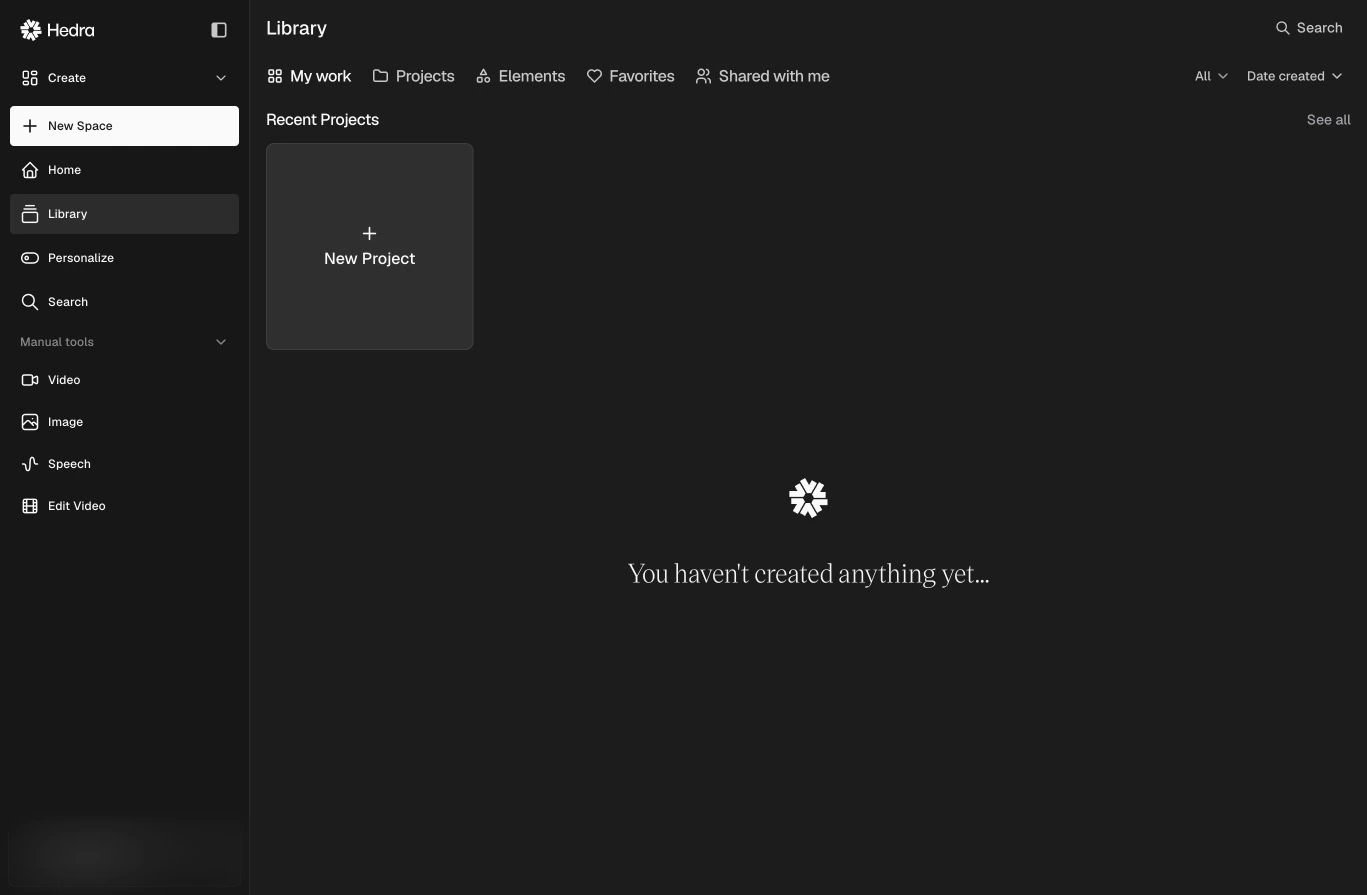 ## Library views
| View | What it contains |
| ------------------ | ------------------------------------------------------------------------- |
| **My work** | Media you generated or uploaded, grouped by date. |
| **Projects** | Collections you create to keep related assets together. |
| **Elements** | Reusable characters, environments, styles, outfits, and brand identities. |
| **Favorites** | Assets you marked for quick access. |
| **Shared with me** | Projects another Hedra user shared with you. |
Use **Search** to find an asset, the media-type filter to narrow results, and
**Date created** to filter work created before, after, or within a date range.
## Projects
Projects organize assets independently of the Space where they were created.
Select **New Project**, give it a useful name, and add related media as the work
develops.
Use a Space for active agent context and a Project for the curated set of assets
you want to keep together.
## Use Library assets in a task
When adding a reference to a Space or generation, choose the Library source to
reuse existing media. The original asset stays in the Library; the task receives
it as context.
## Delete work
Asset and Space deletion is permanent. See
[Manage and delete content](/docs/pages/app/content-creation/delete-content) before
removing work.
## Library views
| View | What it contains |
| ------------------ | ------------------------------------------------------------------------- |
| **My work** | Media you generated or uploaded, grouped by date. |
| **Projects** | Collections you create to keep related assets together. |
| **Elements** | Reusable characters, environments, styles, outfits, and brand identities. |
| **Favorites** | Assets you marked for quick access. |
| **Shared with me** | Projects another Hedra user shared with you. |
Use **Search** to find an asset, the media-type filter to narrow results, and
**Date created** to filter work created before, after, or within a date range.
## Projects
Projects organize assets independently of the Space where they were created.
Select **New Project**, give it a useful name, and add related media as the work
develops.
Use a Space for active agent context and a Project for the curated set of assets
you want to keep together.
## Use Library assets in a task
When adding a reference to a Space or generation, choose the Library source to
reuse existing media. The original asset stays in the Library; the task receives
it as context.
## Delete work
Asset and Space deletion is permanent. See
[Manage and delete content](/docs/pages/app/content-creation/delete-content) before
removing work.